
Switching Between openZro Accounts with Profiles
openZro supports multiple profiles on a single device, making it easy to switch between work, home, or other networks. Only one profile is active at a time, and switching takes just a click.
This feature also allows you to switch between self-hosted and cloud-hosted openZro accounts seamlessly without needing to juggle multiple config files.
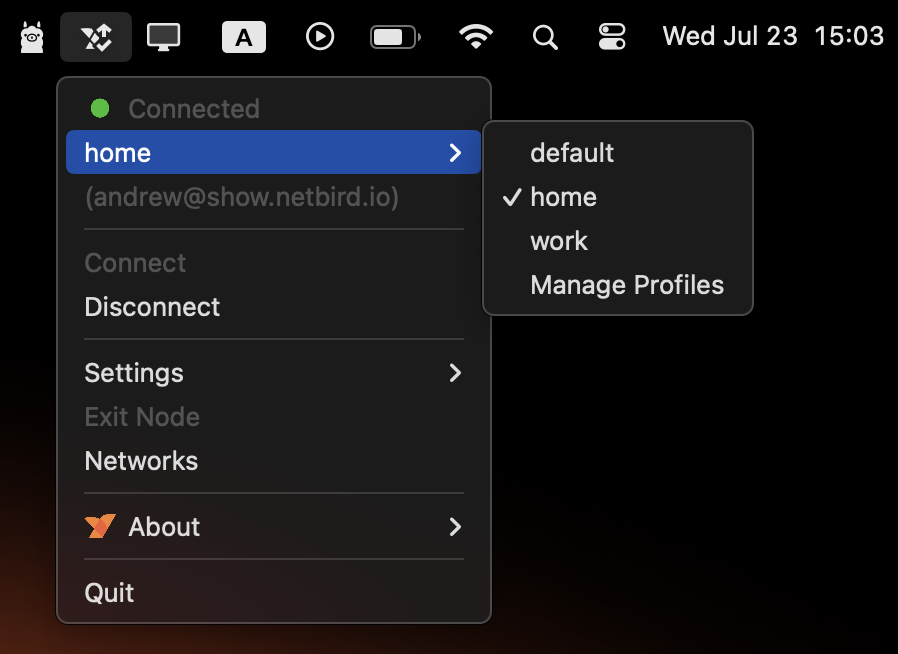
Watch a short demo GIF demonstrating how profile switching works here.
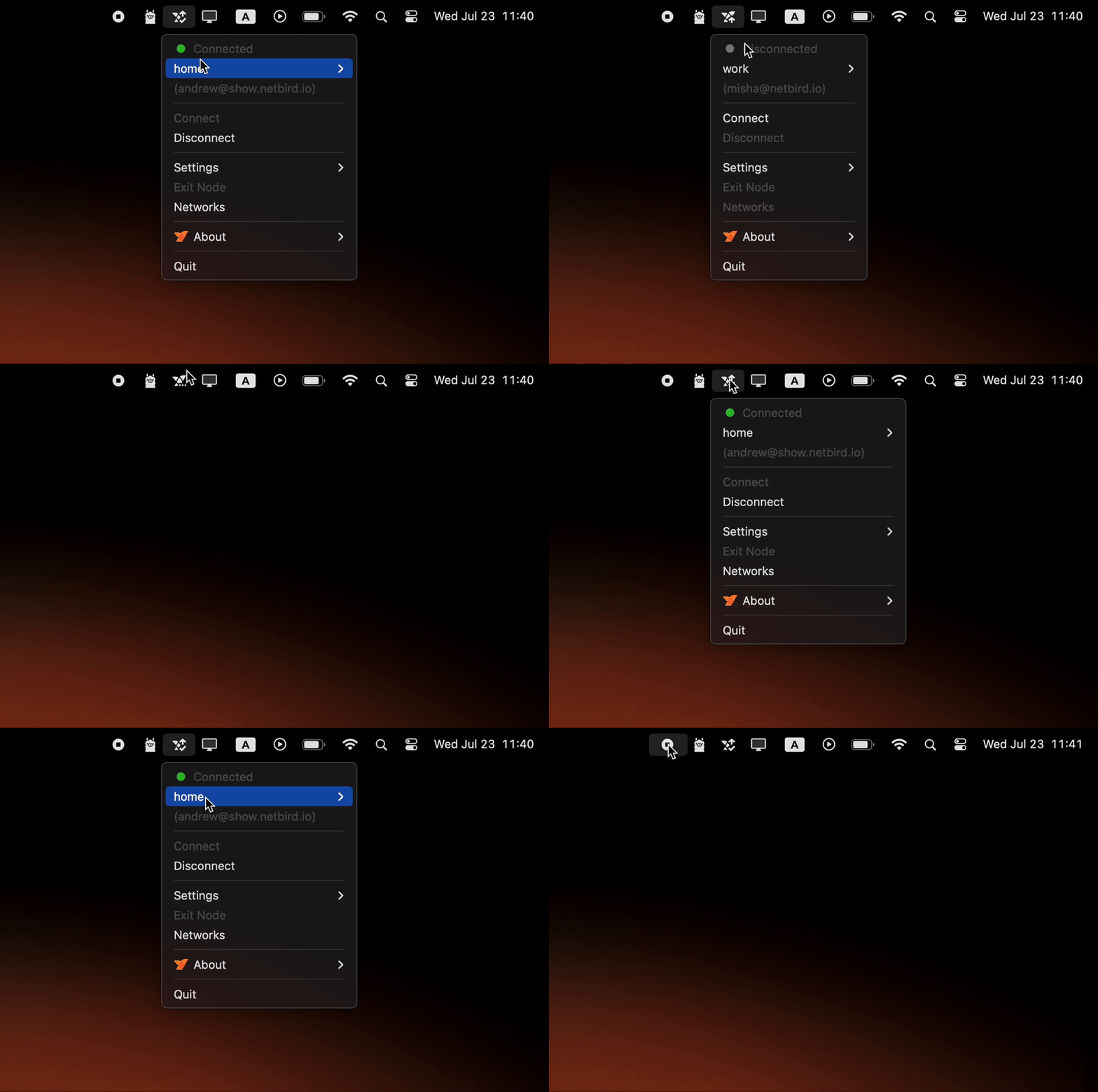
openZro Profiles GUI Quickstart
To get started with openZro profiles:
- Upgrade your client application to the latest openZro version.
- Run the GUI app
You will see a default profile created automatically.
Add more profiles by hovering over the default profile and clicking "Manage Profiles". After adding a new profile, select it to make it active.
You can now change the openZro settings, e.g., providing a self-hosted instance URL or allowing SSH. The new settings will be saved in the new profile. Click "Connect" to bring up the new profile.
The consequent selection of your profiles from the menu will automatically trigger the openZro client to connect to the network and authentication if needed.
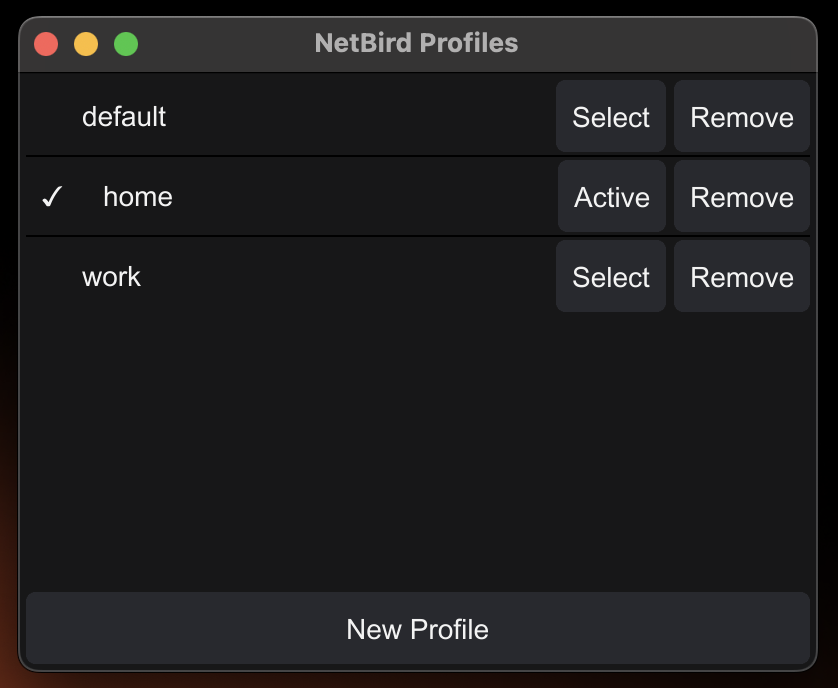
Manage Profiles in the GUI
- Add a new profile with a friendly name input.
- Delete any inactive profile (trash icon).
- Active and default profiles cannot be removed.
What Is a Profile?
A profile is your openZro configuration bundle: WireGuard keys, login state, and network settings all in one file. Think of it as a separate "openZro account" on your machine:
- Default profile
Created automatically on first run or after upgrade. - Custom profiles
Any number of additional profiles you add yourself (e.g.work,home,test).
Profiles live in your system or user config folders:
| OS | Config path |
|---|---|
| Linux | /var/lib/openzro/... |
| macOS | /var/lib/openzro... |
| Windows | %ProgramData%\openZro\profiles\ |
Why Use Profiles?
- Seamless switching between multiple openZro networks/accounts
- No manual config files updates: all configs are managed through the CLI or GUI
- Persistent state: your last active profile reconnects on startup
- Safe defaults: you cannot remove the active/default profile by accident
Upgrading From an Older Version
If you're upgrading from openZro below version 0.52.0 that did not support profiles, here's what happens:
- During the first launch after the upgrade, your existing config
/etc/openzro/config.json(or Windows equivalent) is automatically copied to a new profile nameddefault. - The
defaultprofile is set as active, and you can start using it immediately.
Disabling Profiles Feature
In some environments, you may want to disable the profiles feature entirely. This can be useful for:
- Managed environments where users should not be able to switch between different openZro accounts
- Security policies that require a single, fixed configuration
- Automated deployments where profile switching could interfere with operations
To disable the profiles feature, you can use the --disable-profiles flag when installing the service:
sudo openzro service install --disable-profiles
Alternatively, you can set the NB_DISABLE_PROFILES environment variable:
export NB_DISABLE_PROFILES=true
sudo openzro service install
When profiles are disabled:
- Users cannot create, switch, or remove profiles
- The profile management UI is disabled
- All profile-related CLI commands are disabled
- The client operates with a single, fixed configuration
- Profile switching is completely prevented
You can also disable update settings functionality using the --disable-update-settings flag or NB_DISABLE_UPDATE_SETTINGS environment variable. This prevents users from modifying any configuration settings, providing an additional layer of control in managed environments.
Profile CLI Commands
With the CLI, you can manage profiles easily. The main command is:
openzro profile <add|list|select|remove> [name]
Add a New Profile
To create a new profile, use the command:
openzro profile add <PROFILE_NAME>
For example, the command below creates a new profile named work:
openzro profile add work
This command does the following in the background:
- Creates a
work.jsonfile in your config folder. - Keeps the client disconnected until you run
openzro uporopenzro login. - Will throw an error if the profile with the same name already exists.
List Profiles
The command below lists all available profiles along with their status:
openzro profile list
For example, running this command might output:
Found 3 profiles:
✓ work
✗ default
✗ home
- ✓ = active
- ✗ = inactive
Select (Switch) a Profile
To switch to a specific profile, use:
openzro profile select <PROFILE_NAME>
For example, to switch to the home profile:
openzro profile select home
The successful command will output:
Profile switched successfully to: home
If home hasn't been used before, you will need to run openzro up or openzro login to authenticate.
If the profile does not exist, you'll see an error message:
Error: profile home does not exist
Remove a Profile
To remove a profile, use:
openzro profile remove <PROFILE_NAME>
For example, to remove the home profile:
openzro profile remove home
If successful, you'll see:
Profile removed successfully: home
You can't remove an active profile. If the profile your are trying to remove is active, you'll see an error:
Cannot remove active profile: home
If the profile does not exist, you'll see an error message:
Error: profile home does not exist
The command does the following in the background:
- Removes
home.jsonandhome.state.jsonfiles from your config folder.
Using --profile Flags
--profile FlagsYou can use the --profile flag with any openZro CLI command to specify which profile to use for that command.
This is useful for running commands in a specific context without switching profiles manually.
openzro up --profile work
openzro login --profile home
openZro switches to the named profile then runs the command under the hood. If the profile is new and hasn't been used yet, you'll be prompted to authenticate.