
Visualize Remote Access with Control Center
Control Center is a read-only topology view in the openZro dashboard that shows which connections your access-control policies permit. It maps Peers, Users, Groups, and Networks to the resources they can reach, through the policies that permit those connections, with port and protocol labels on every edge.
It reflects your policy configuration, posture-aware — not live device connectivity. The graph is derived on the server from the same policy engine that enforces access, so it never disagrees with what the engine would decide.
Permissions: Control Center is admin-only — it exposes the whole workspace's access wiring, so it is restricted to full account Admins. Admins can also edit policies from Control Center. Learn more about user roles.
How it helps
- Faster audits: Confirm at a glance which connections a peer, user, group, or network is permitted, and on which ports.
- Spot posture gaps: See where a policy would permit a connection but a posture check blocks it — surfaced explicitly instead of silently dropped.
- Quicker troubleshooting: Follow the exact policy path that grants (or blocks) access to a resource.
- Safer changes: Open the permitting policy in place and refine sources, destinations, or ports without leaving the view.
Reading the graph
The columns always read left → right, with Policy as the middle pivot:
- Peer / Group: focus → Policies → Resources
- User: focus → Peers (the user's machines) → Policies → Resources
- Networks: the inverse fan-in — Groups → Policies → the selected network resource ("who can reach this resource")
Edges are coloured by enforcement state:
- Green — the policy permits the connection and its posture checks pass.
- Red — the policy permits the connection but a posture check blocks it (the failing check is named on the edge).
For a group source, the edge also shows how many of the group's members the policy currently applies to (e.g. 3 of 5 members), so partial reach is never mistaken for full reach. An empty or stale group produces no green edge.
Everything is read-only except the policy editor (below). To change focus, click the focus card and search or pick another entity from the inline list; opening a tab automatically focuses the first available entity.
Views
Peers view
Use this to understand what a specific machine is permitted to reach.
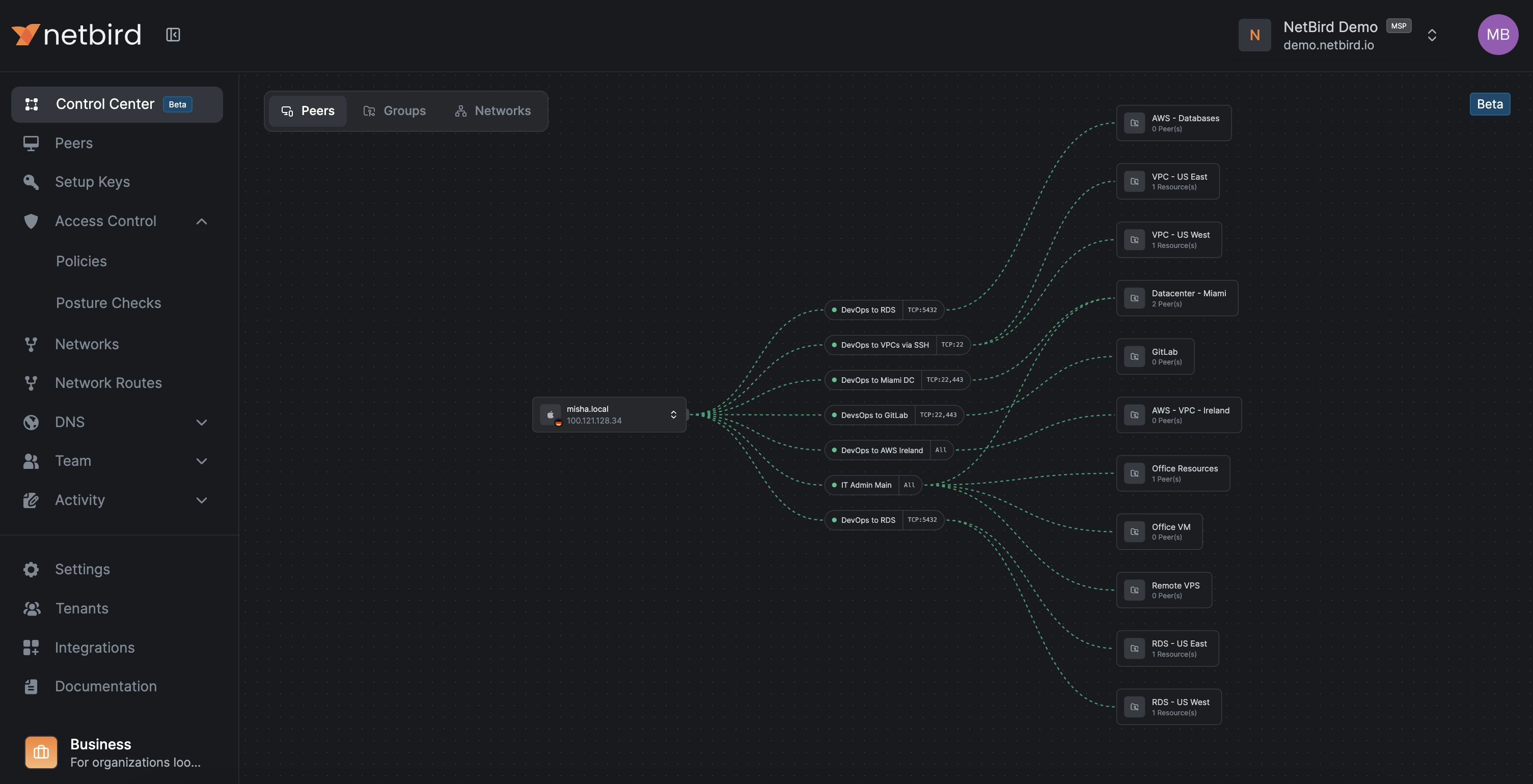
- Click the peer (focus) card, then search or choose another peer from the inline picker to switch focus.
- The graph shows the policies that apply to the peer and the resources they permit, with port/protocol labels.
- Click a policy to open it in an editor on this page — changes you save are reflected in the graph immediately.
Users view
Use this to see what a specific user is permitted to reach, across all of their machines.
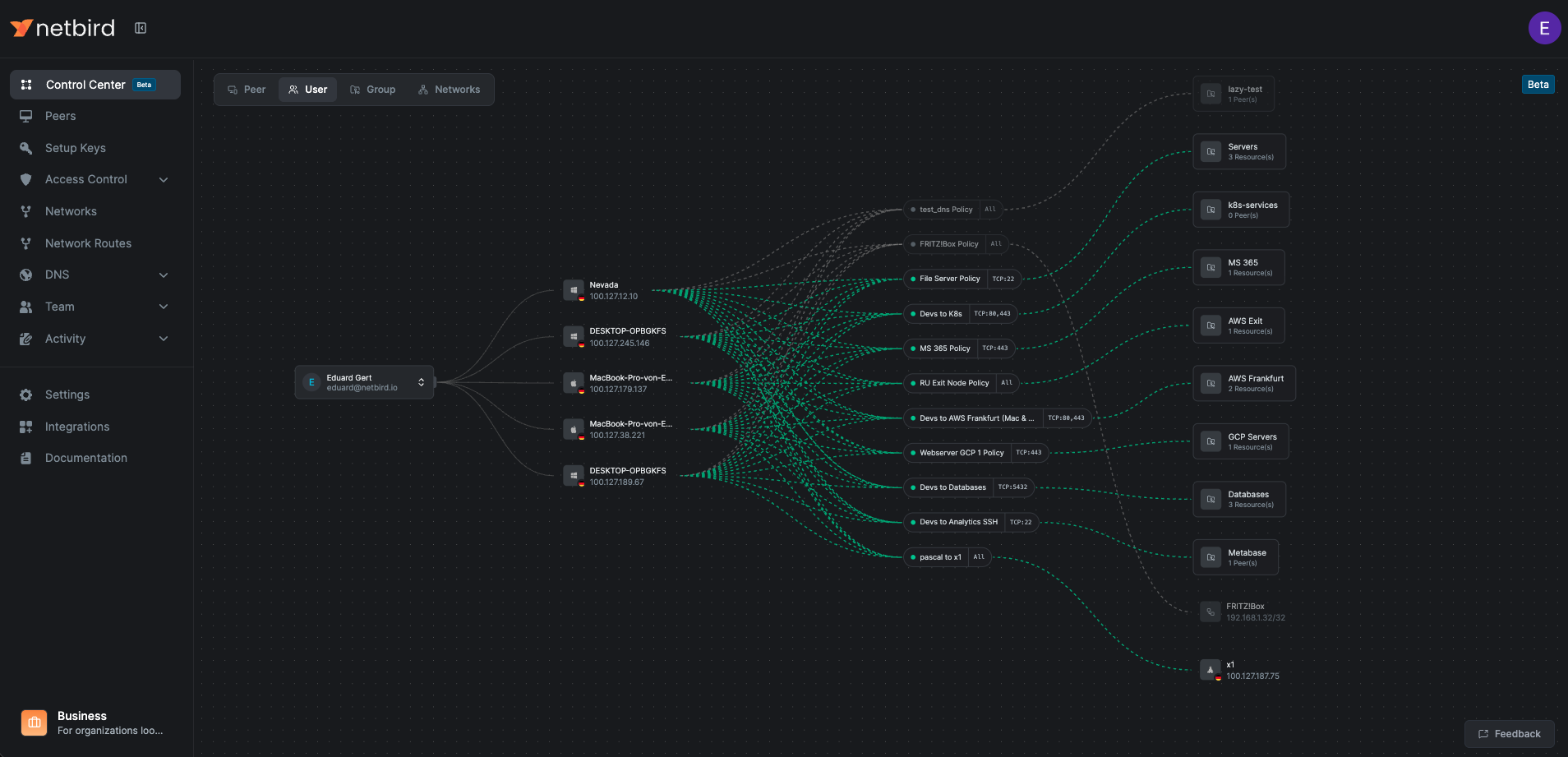
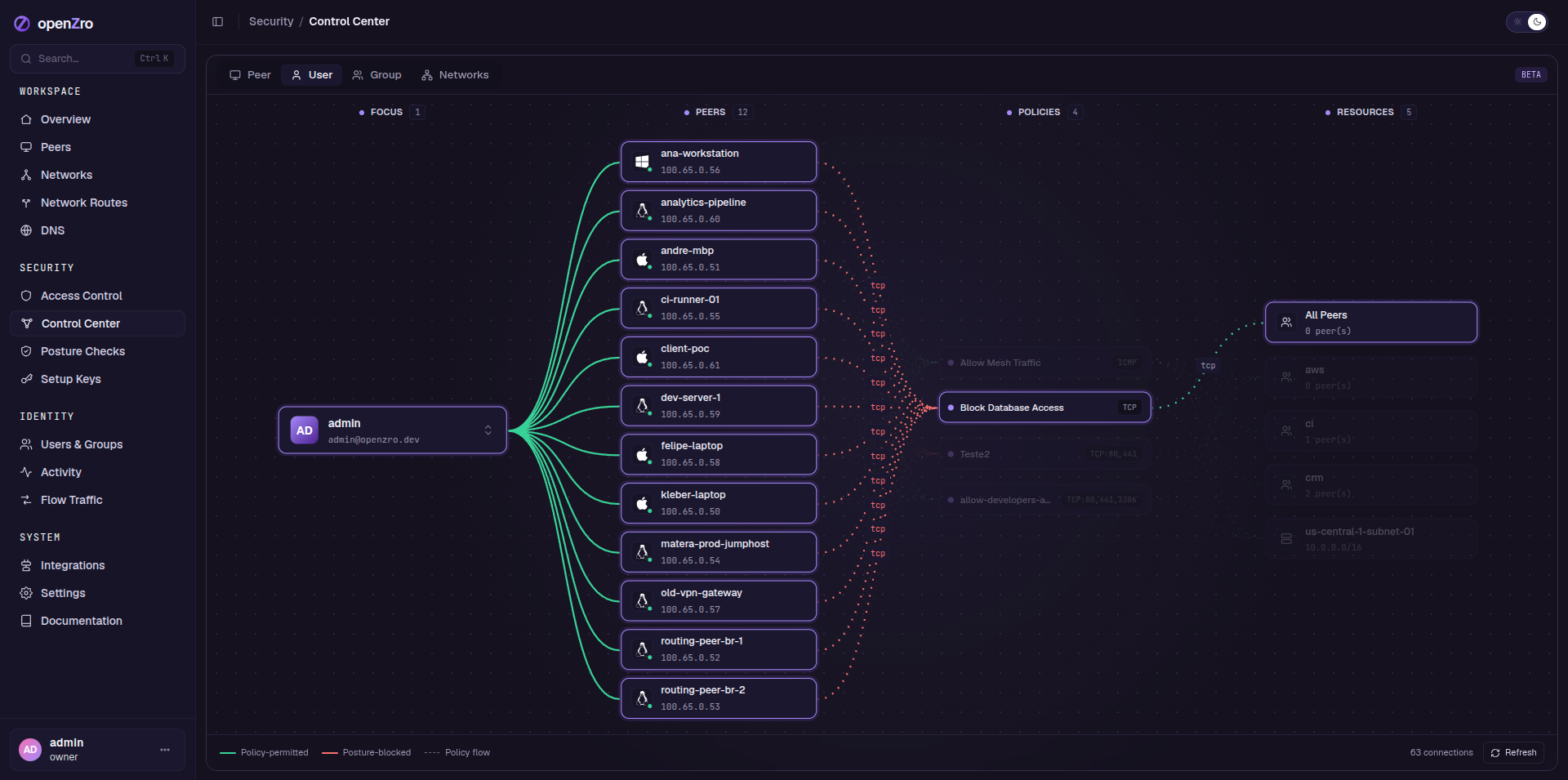
- Click the user (focus) card, then search or choose another user from the inline picker.
- The graph shows the user's peers, the policies that apply to them, and the resources those policies permit.
- Click a peer to re-focus the graph on that specific machine.
- Click a policy to edit it in place; the graph refreshes on save.
Groups view
Use this to validate team-level access.
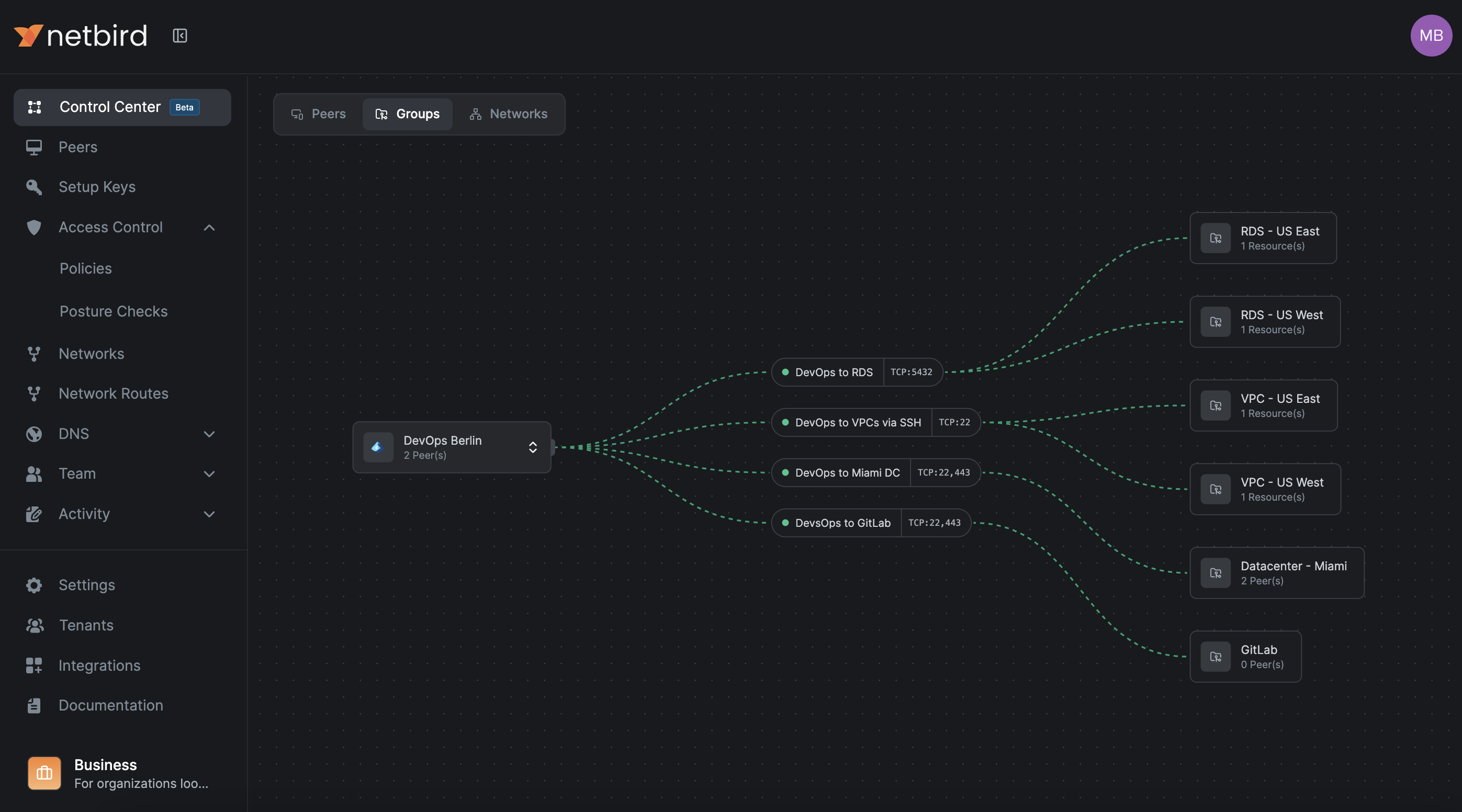
- Click the group (focus) card, then search or choose another group from the inline picker.
- The layout shows which resources that group is permitted to reach and via which policies, with the k of n members indicator on each edge.
- Topology is view-only here; create or delete groups in the Groups section. Group-based access is the recommended way to manage permissions.
Common checks:
- Confirm that "DevOps" can reach RDS on TCP 5432, or that "Support" only reaches SSH on TCP 22.
Networks view
Use this to see who can reach a resource in your routed networks — the inverse of the other tabs.
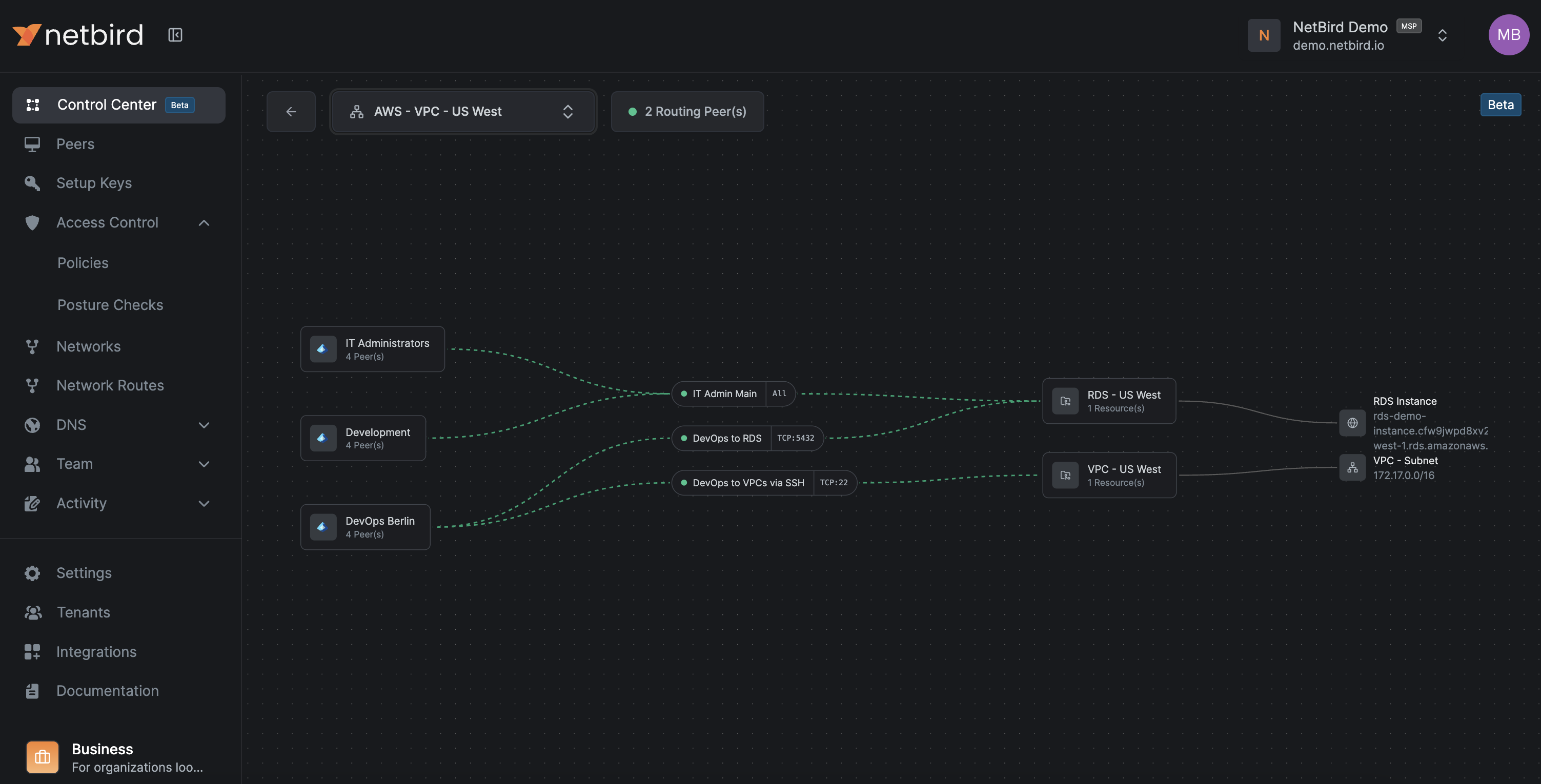
- Pick a network resource from the inline picker; it becomes the focus on the right.
- The graph fans in: the groups (with peer counts) and the policies — with the permitted port — that grant access to that resource.
- If every source group of a permitting policy is empty, that policy path is not drawn (nobody can actually reach it).
- Click any policy to edit it in place. openZro Networks and routing peers enable access to private subnets and IP resources.
Editing policies from the graph
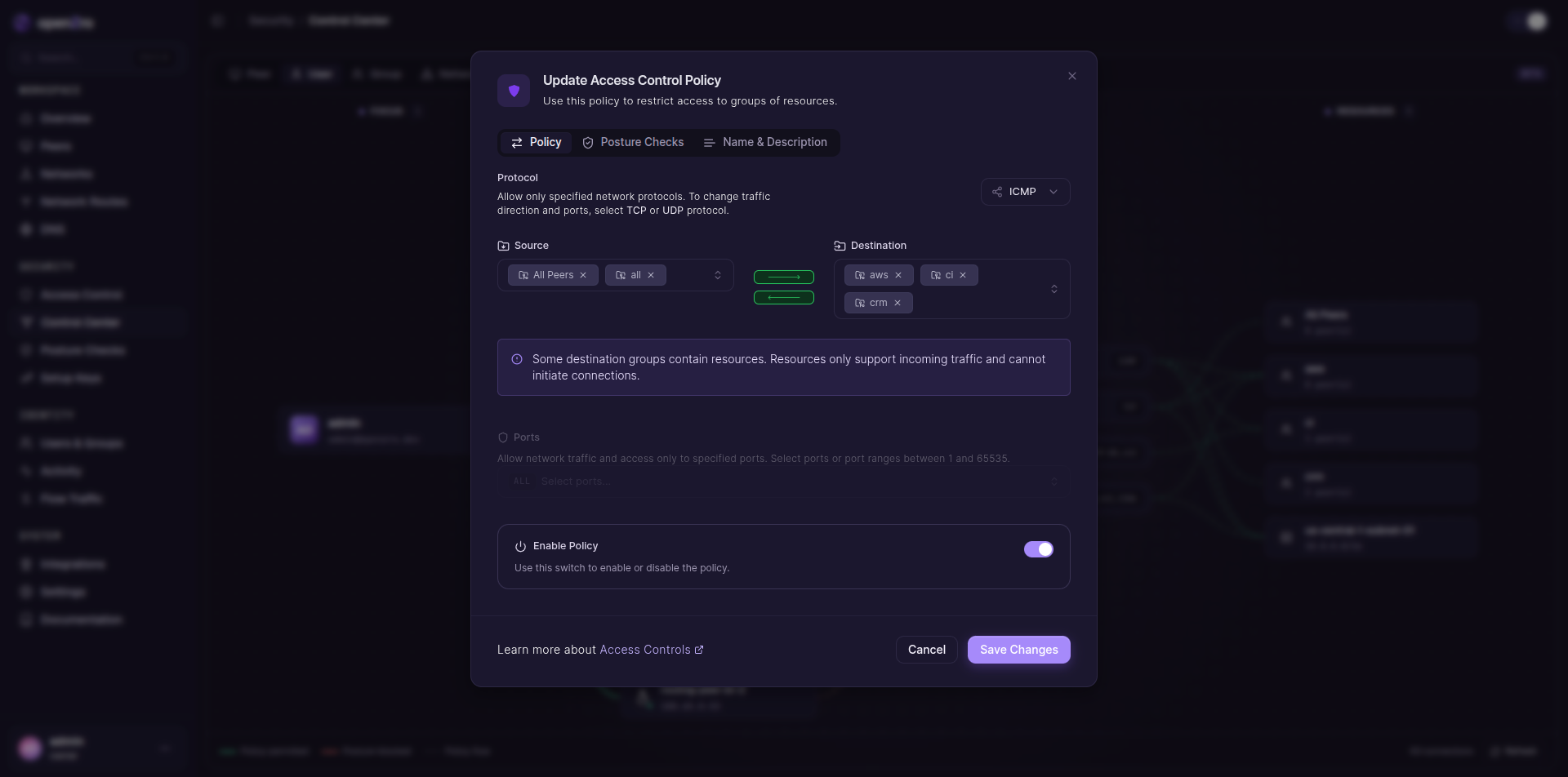
- Open editor: Click an access-control policy in any view to open the policy editor as a modal on Control Center — you keep the topology context.
- What you can change: the usual policy fields as documented in Access Control — sources, destinations, protocols, ports, and posture checks.
- On save: the graph and policy list revalidate in place; no page reload, no navigating away.
- Create vs edit: you edit existing policies from Control Center. Creating a new policy still happens in the Access Control section.
Quick start
- Open Control Center in the openZro dashboard.
- Pick a tab: Peer, User, Group, or Networks.
- The first entity is focused automatically — or click the focus card and search for another.
- Follow the policy path to the target resource; green means policy-permitted, red means posture-blocked.
- Click a policy to edit it in the modal, then save. The graph updates right away.
Use cases
- Sanity-check a team: In Group view, select a group and verify the resources and ports its policies grant match your intent. Adjust policies in place if needed.
- Prepare a change: In Networks view, review which groups can reach a sensitive resource before tightening ports or destinations.
- Investigate access: In Peer or User view, confirm why a host can reach a database by following the policy path and port labels — and whether a posture check is blocking an otherwise-permitted path.