
Resolving Overlapping Routes
openZro Network Routes enable peers to access external networks such as VPCs, LANs, or office networks. When multiple networks have overlapping IP ranges, openZro's route selection feature lets you choose which routes to apply on the client side.
Route selection requires openZro client version 0.27.4 or later.
Using Route Selection
You can select routes through the CLI or the system tray GUI.
CLI
List available routes:
openzro routes list
Example output:
Available Routes:

  - ID: aws-vpc-ireland
    Network: 172.17.0.0/16
    Status: Selected

  - ID: aws-vpc-ohio
    Network: 172.17.0.0/16
    Status: Selected
In this example, both routes have the same network range and are both selected, causing a conflict. To resolve this, select only one route:
openzro routes select aws-vpc-ireland
Running openzro routes select deselects all other routes by default.
Additional examples:
# Select all routes
openzro routes select all

# Select multiple routes
openzro routes select route1 route2

# Append a route without deselecting others
openzro routes select -a route3
GUI
Open the openZro system tray application and navigate to Network Routes. Click the checkbox next to each route to select or deselect it.
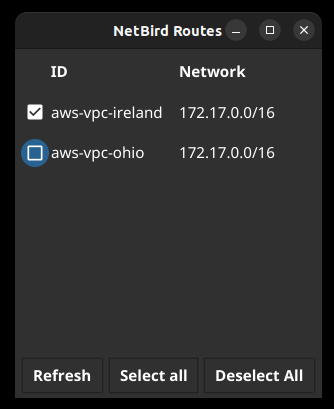
Enabling All Routes
Use openzro routes select all in the CLI or the corresponding button in the GUI to select all available routes, including any added in the future. This restores the default behavior.
Disabling All Routes
Use openzro routes deselect all in the CLI or the GUI button to deselect all routes, including any added in the future.