
PocketID SSO with openZro Self-Hosted (Advanced)
PocketID is a simplified identity management solution designed for self-hosted environments, offering a lightweight and easy-to-deploy option for authentication.
PocketID is secure and effective but makes some tradeoffs in terms of features. Notably, it does not allow scoping the access of API Tokens. Keep careful track of the token used by openZro for management.
Standalone Setup (Advanced)
This guide wires PocketID as openZro's only identity provider — Dex is disabled and the management daemon talks directly to PocketID for token validation. Choose this path only if all three apply:
- You want to skip the Dex layer entirely. Unlike Keycloak or Zitadel, PocketID does not expose a writeback API to openZro — the management cannot list, invite, or delete users in PocketID. The standalone path's only motivation is removing one component (Dex) at the cost of multi-IdP support and the static admin fallback.
- You need just one IdP, and it's PocketID. This path doesn't support multiple upstreams — there's no Dex to aggregate them.
- You're willing to give up the bootstrap admin fallback. No embedded local user store. If PocketID is down or misconfigured, nobody can log into the dashboard.
For everyone else — multi-IdP shops, anyone wanting a static admin fallback, or anyone unsure whether they'll outgrow PocketID later — use the Management Setup (Recommended) in the main PocketID documentation instead. It runs Dex in front of PocketID and makes a future swap to a different IdP painless.
Prerequisites
- PocketID instance running with SSL
- Docker and Docker Compose for openZro
Step 1: Create and Configure PocketID Application
- Navigate to PocketID console
- Click the Administration dropdown, then select OIDC Clients
- Fill in the form:
- Name:
openZro - Client Launch URL:
https://<domain> - Callback URLs:
http://localhost:53000https://<domain>/authhttps://<domain>/silent-auth
- Logout Callback URL:
https://<domain>/ - Public Client: On
- PKCE: On
- Name:
- Click Save
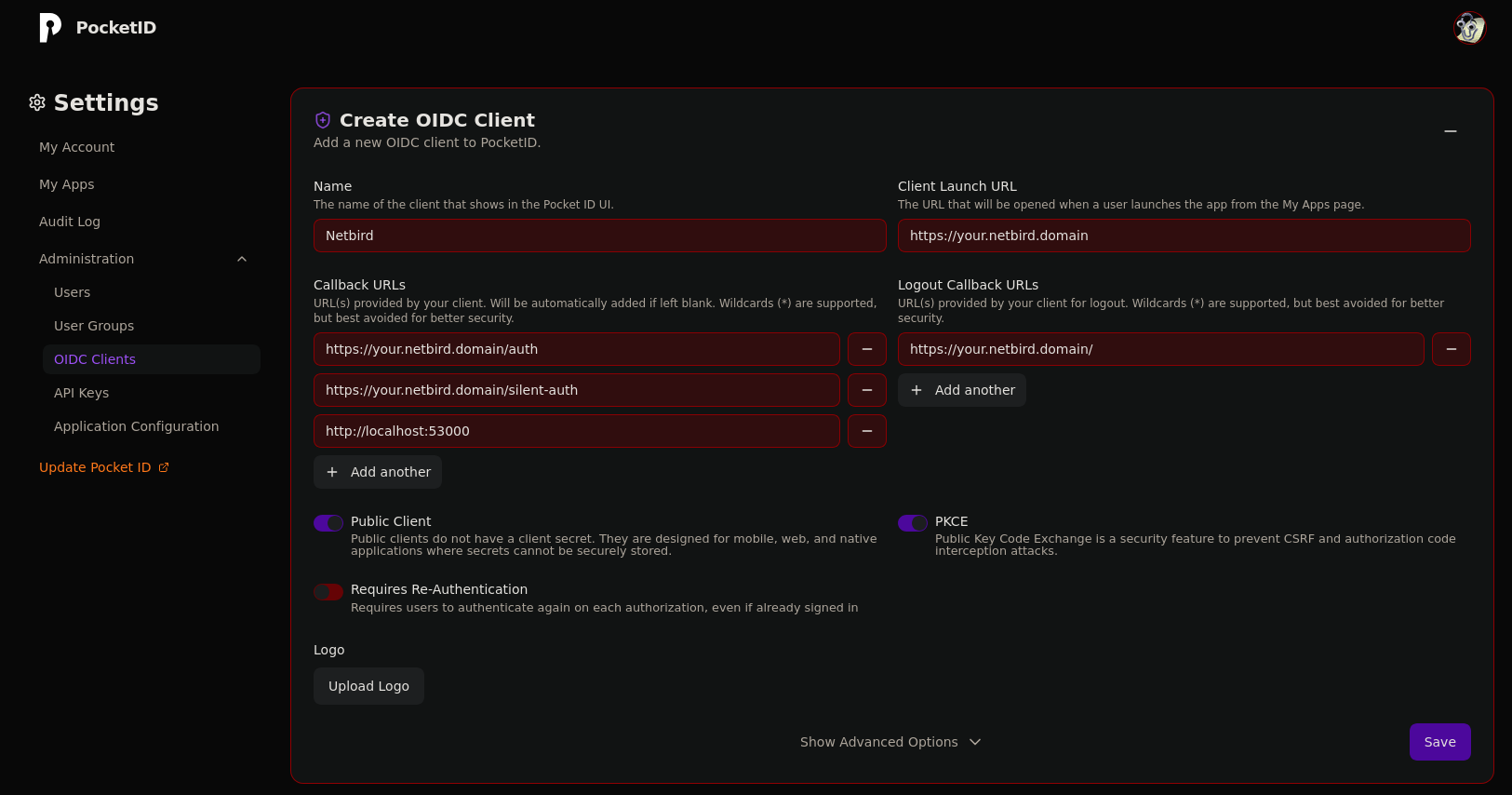
- Copy Client ID for later use
Step 2: Create API Token
- Click Administration dropdown, then select API Keys
- Click Add API Key
- Fill in:
- Name:
openZro Management Token - Expires At: Pick a date in the future
- Description:
openZro Management Token
- Name:
- Click Save
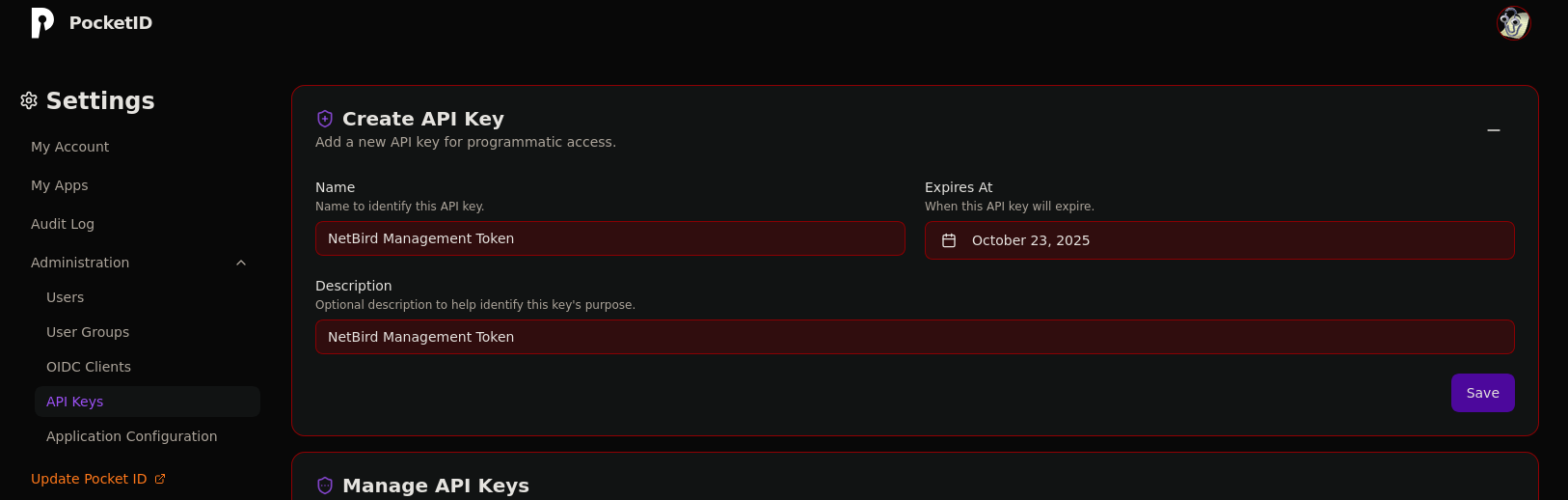
- Copy API Key for later use
Step 3: Configure openZro
Your authority OIDC configuration will be available at:
https://<YOUR_POCKETID_HOST_AND_PORT>/.well-known/openid-configuration
Double-check if the endpoint returns a JSON response by calling it from your browser.
Set properties in the setup.env file:
OPENZRO_AUTH_OIDC_CONFIGURATION_ENDPOINT="https://<YOUR_POCKETID_HOST_AND_PORT>/.well-known/openid-configuration"
OPENZRO_USE_AUTH0=false
OPENZRO_AUTH_CLIENT_ID="<CLIENT_ID>"
OPENZRO_AUTH_SUPPORTED_SCOPES="openid profile email groups"
OPENZRO_AUTH_AUDIENCE="<CLIENT_ID>"
OPENZRO_AUTH_REDIRECT_URI="/auth"
OPENZRO_AUTH_SILENT_REDIRECT_URI="/silent-auth"
OPENZRO_TOKEN_SOURCE="idToken"

OPENZRO_AUTH_DEVICE_AUTH_PROVIDER="none"
OPENZRO_AUTH_DEVICE_AUTH_CLIENT_ID="<CLIENT_ID>"
OPENZRO_AUTH_DEVICE_AUTH_AUDIENCE="<CLIENT_ID>"
OPENZRO_AUTH_DEVICE_AUTH_SCOPE="openid profile email groups"
OPENZRO_AUTH_DEVICE_AUTH_USE_ID_TOKEN=true

OPENZRO_MGMT_IDP="pocketid"
OPENZRO_IDP_MGMT_CLIENT_ID="openzro"
OPENZRO_IDP_MGMT_EXTRA_MANAGEMENT_ENDPOINT="https://<YOUR_POCKETID_HOST_AND_PORT>"
OPENZRO_IDP_MGMT_EXTRA_API_TOKEN="<API_TOKEN>"
Step 4: Continue with openZro Setup
You've configured all required resources in PocketID. Continue with the openZro Self-hosting Guide.
Troubleshooting
API token not working
- Verify the token hasn't expired
- Ensure the token was created by an admin user
Device authorization not available
- PocketID has limited device auth support
- Set
OPENZRO_AUTH_DEVICE_AUTH_PROVIDER="none"if issues persist