
Auth0 SSO with openZro Self-Hosted (Legacy)
Auth0 is a flexible, drop-in solution to add authentication and authorization services to your applications. It's a managed service that handles identity infrastructure so you don't have to.
Standalone Setup (Advanced)
openZro includes built-in local user management powered by an embedded IdP, allowing you to create and manage users directly without requiring an external identity provider. You can also add multiple external identity providers alongside local users, giving users multiple login options.
We highly recommend using the simpler setup that adds Auth0 as an external IdP directly in the openZro Management Dashboard. This approach requires minimal configuration, works alongside local users, and doesn't require replacing your embedded IdP. See the Management Setup (Recommended) section in the main Auth0 documentation.
The standalone setup below replaces your embedded IdP entirely and is only recommended for experienced Auth0 administrators who need full control over authentication and user management.
Use Auth0 as your primary identity provider instead of openZro's embedded IdP. This option gives you full control over authentication and user management, is recommended for experienced Auth0 administrators as it also requires additional setup and ongoing maintenance.
For most deployments, the embedded IdP is the simpler choice — it's built into openZro, fully integrated, and requires minimal configuration to get started. For this implementation, go back up to the Management Setup (Recommended) section above.
If you prefer to have full control over authentication, consider self-hosted alternatives like PocketID.
Prerequisites
- Auth0 account (sign up at https://auth0.com/)
- Docker and Docker Compose for openZro
Configuration Properties
You will configure these properties in setup.env:
OPENZRO_AUTH_CLIENT_IDOPENZRO_AUTH_OIDC_CONFIGURATION_ENDPOINTOPENZRO_USE_AUTH0OPENZRO_AUTH_AUDIENCEOPENZRO_AUTH_DEVICE_AUTH_CLIENT_ID(Optional)OPENZRO_MGMT_IDPOPENZRO_IDP_MGMT_CLIENT_IDOPENZRO_IDP_MGMT_CLIENT_SECRETOPENZRO_IDP_MGMT_EXTRA_AUDIENCE
Step 1: Create Dashboard Application
This application authorizes access to openZro Dashboard.
- Follow the Auth0 React SDK Guide up to "Install the Auth0 React SDK"
- Set Allowed Callback URLs:
https://YOUR_DOMAINandhttp://localhost:53000 - Set Allowed Logout URLs, Allowed Web Origins, Allowed Origins (CORS):
https://YOUR_DOMAINandhttp://localhost
Ensure Token Endpoint Authentication Method is set to None.
- Use Client ID for
OPENZRO_AUTH_CLIENT_ID - Use Domain to configure
OPENZRO_AUTH_OIDC_CONFIGURATION_ENDPOINT:
https://<DOMAIN>/.well-known/openid-configuration
Double-check if the endpoint returns a JSON response by calling it from your browser.
Step 2: Create API
This API is used to access openZro Management Service.
- Follow the Auth0 Create An API guide
- Use the API Identifier for
OPENZRO_AUTH_AUDIENCE - Set
OPENZRO_USE_AUTH0=true
Step 3: Enable Interactive SSO Login (Optional)
This enables machine authorization via your Identity Provider as an alternative to setup keys.
- Go to Applications
- Click Create Application
- Fill in:
- Name:
Interactive Login - Application type:
Native
- Name:
- Click Create
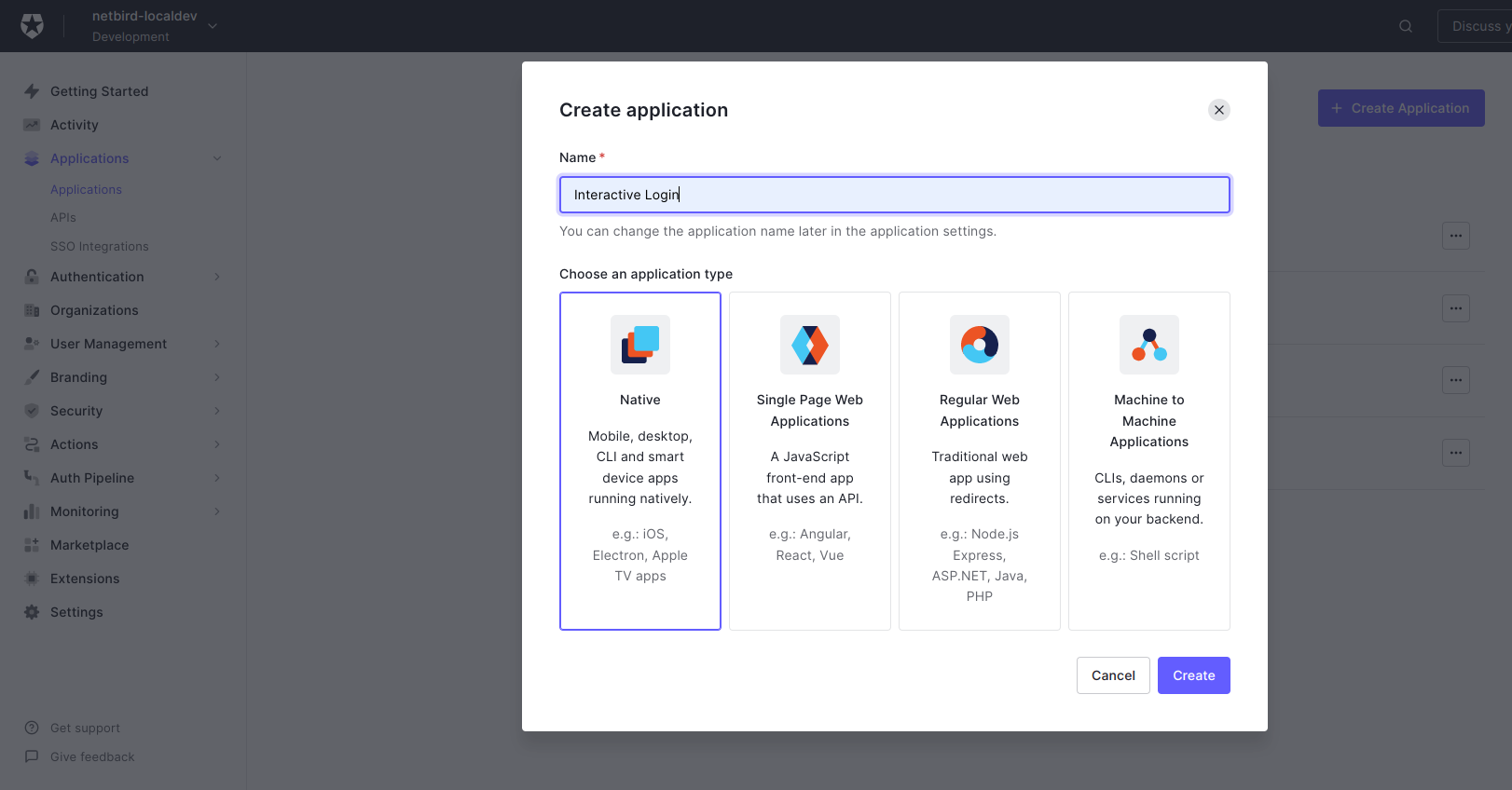
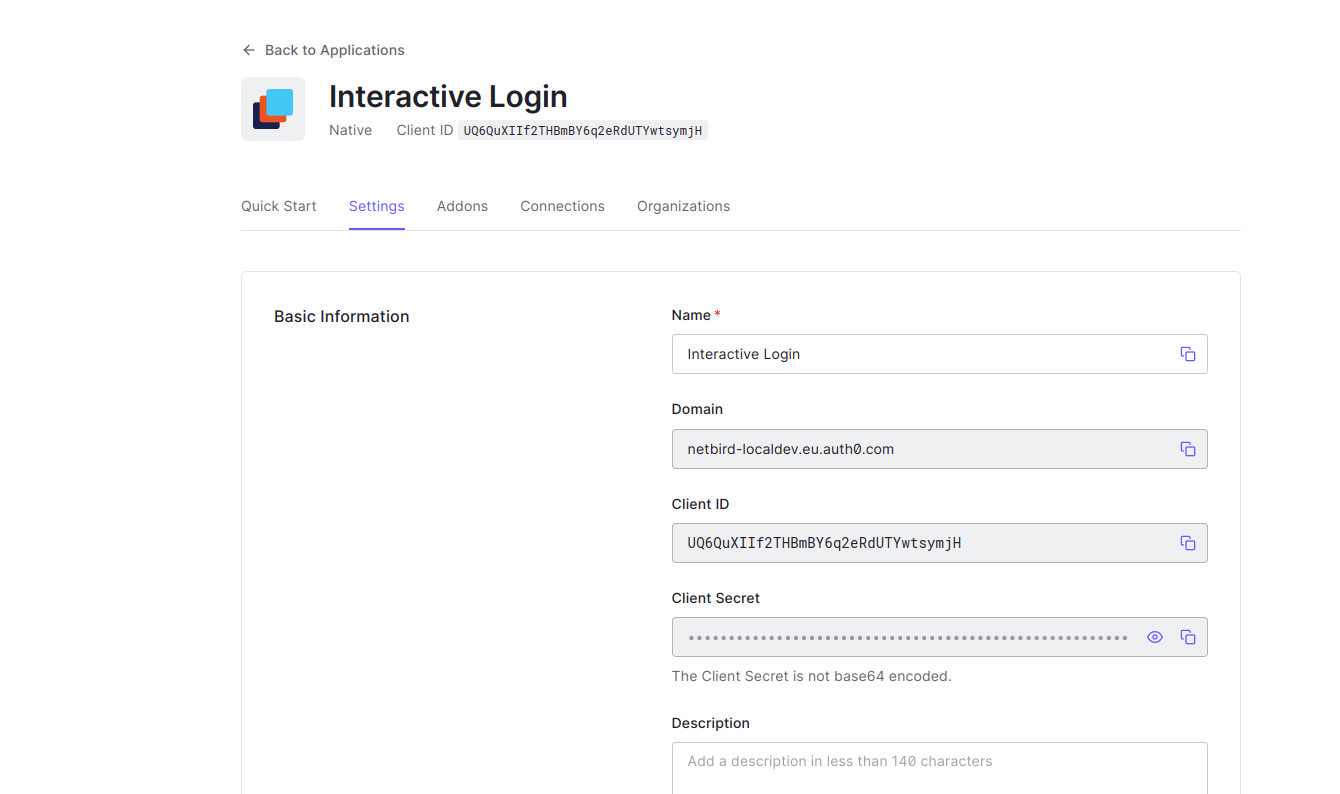
- Click Settings tab
- Copy Client ID to
OPENZRO_AUTH_DEVICE_AUTH_CLIENT_ID
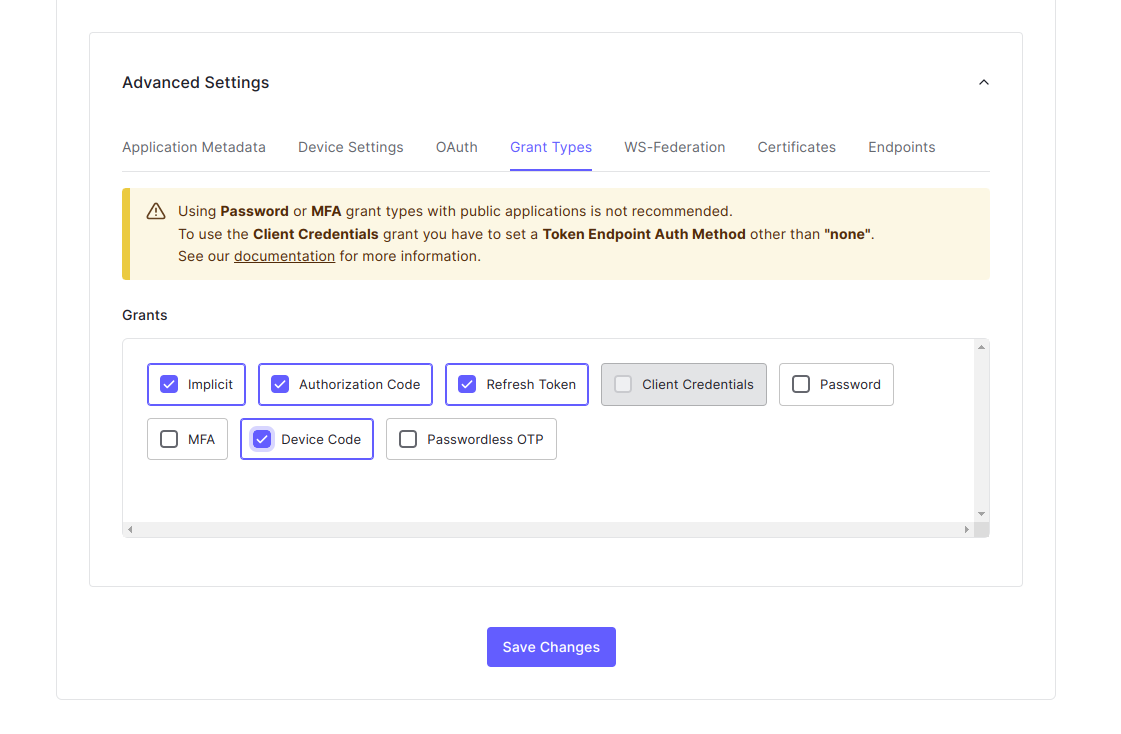
- Scroll to Advanced Settings
- Enable Device Code
- Click Save Changes
Step 4: Create Machine to Machine Application
This application authorizes access to Auth0 Management API.
- Go to Applications
- Click Create Application
- Fill in:
- Name:
openZro API - Application type:
Machine to Machine Applications
- Name:
- Click Create
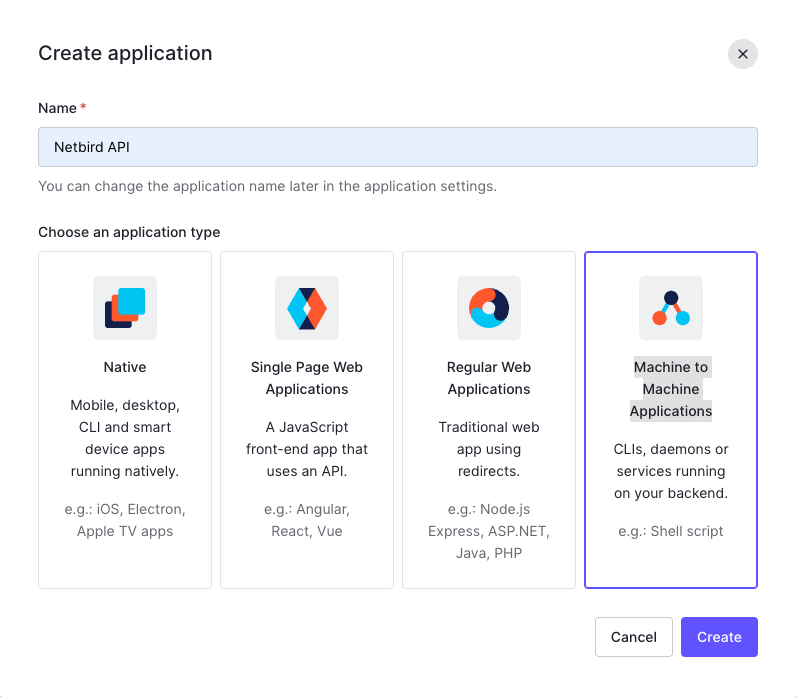
- Configure:
- API:
Auth0 Management API - Permissions:
read:users,update:users,create:users,read:users_app_metadata,update:users_app_metadata,create:users_app_metadata
- API:
- Click Authorize
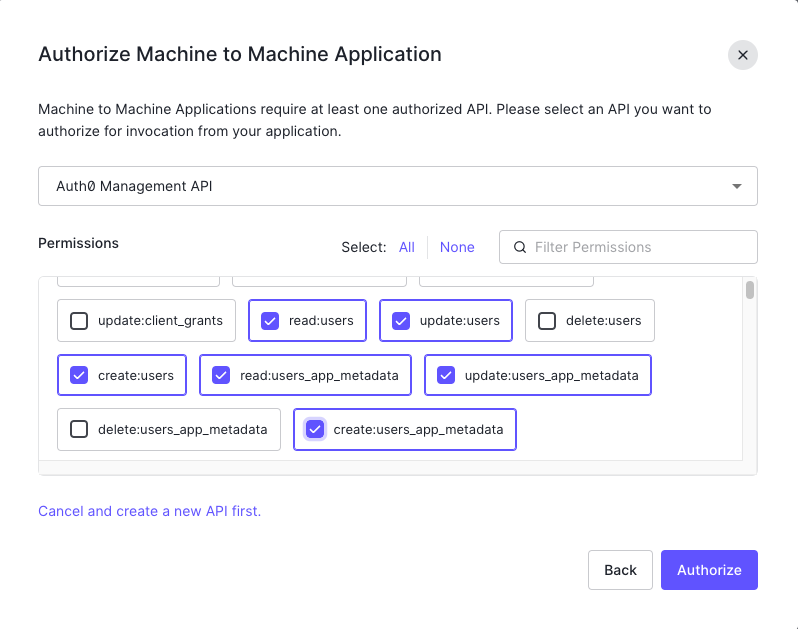
Optional: To enable automatic user deletion from Auth0 when deleted from openZro, add the --user-delete-from-idp flag to the management startup command and assign the delete:users permission.
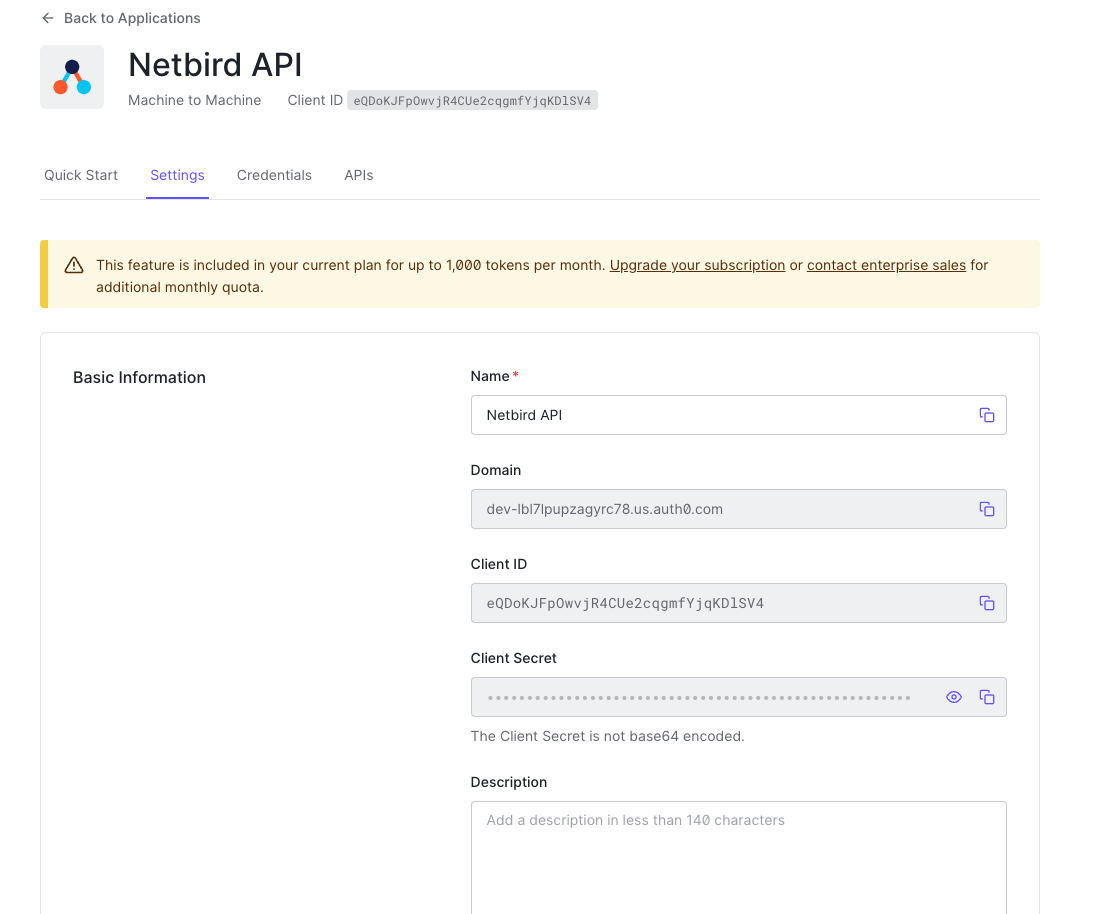
- Click Settings tab
- Copy values:
- Client ID →
OPENZRO_IDP_MGMT_CLIENT_ID - Client Secret →
OPENZRO_IDP_MGMT_CLIENT_SECRET - Domain →
OPENZRO_IDP_MGMT_EXTRA_AUDIENCE(format:https://<DOMAIN>/api/v2/)
- Client ID →
Step 5: Configure openZro
Set properties in the setup.env file:
OPENZRO_AUTH_OIDC_CONFIGURATION_ENDPOINT="https://<DOMAIN>/.well-known/openid-configuration"
OPENZRO_USE_AUTH0=true
OPENZRO_AUTH_CLIENT_ID="<CLIENT_ID>"
OPENZRO_AUTH_SUPPORTED_SCOPES="openid profile email offline_access api email_verified"
OPENZRO_AUTH_AUDIENCE="<IDENTIFIER>"
OPENZRO_AUTH_DEVICE_AUTH_CLIENT_ID="<INTERACTIVE_CLIENT_ID>"

OPENZRO_MGMT_IDP="auth0"
OPENZRO_IDP_MGMT_CLIENT_ID="<OPENZRO_API_CLIENT_ID>"
OPENZRO_IDP_MGMT_CLIENT_SECRET="<OPENZRO_API_CLIENT_SECRET>"
OPENZRO_IDP_MGMT_EXTRA_AUDIENCE="https://<DOMAIN>/api/v2/"
Step 6: Continue with openZro Setup
You've configured all required resources in Auth0. Continue with the openZro Self-hosting Guide.
Troubleshooting
"Invalid redirect URI" error
- Ensure all callback URLs are configured in Auth0
- Check for trailing slashes
- Verify URLs match exactly
"Unauthorized" errors for Management API
- Verify the Machine to Machine application has correct permissions
- Check that
OPENZRO_IDP_MGMT_EXTRA_AUDIENCEincludes/api/v2/
Device authorization not working
- Ensure Device Code grant is enabled in Advanced Settings
- Verify the native application Client ID is used
Token validation errors
- Verify
OPENZRO_USE_AUTH0=trueis set - Check the audience matches the API identifier
openZro includes built-in local user management powered by an embedded IdP, allowing you to create and manage users directly without requiring an external identity provider. You can also add multiple external identity providers alongside local users, giving users multiple login options.
We highly recommend using the simpler setup that adds Auth0 as an external IdP directly in the openZro Management Dashboard. This approach requires minimal configuration, works alongside local users, and doesn't require replacing your embedded IdP. See the Management Setup (Recommended) section in the main Auth0 documentation.