
OPNsense Installation
OPNsense ships a NetBird package (maintained by Deciso, the OPNsense
vendor) directly in the firmware plugin manager since version 25.7.3.
openZro is wire-compatible with that client because we forked
NetBird at v0.52.2, the last permissively-licensed release before
the upstream's AGPL relicense — and the agent ↔ management protocol
hasn't broken across versions.
So the workflow is: install Deciso's os-netbird plugin from the
OPNsense plugin manager, then point the Management URL field at
your openZro management server. No openZro-specific build needed.
The plugin source lives at
netbirdio/OPNsensePlugins
(a BSD-2-Clause fork of OPNsense's official plugins repo) and
is published into the OPNsense plugin manager as os-netbird
by Deciso. The label says NetBird inside the UI because that's
the upstream package name — configure it to point at openZro
in the next step. The agent binary that the plugin installs is
licensed AGPLv3 (NetBird's current license); you're an end-user
consuming it, which doesn't affect your openZro management
deployment (which stays BSD-3).
Prerequisites
- OPNsense
25.7.3or later - Shell or Web UI access to your OPNsense system
- A setup key to authenticate and register the OPNsense device
Installation
-
Log in to your OPNsense Web UI
-
Install the plugin
System>Firmware>Plugins, search foros-netbird, and click the install button. OPNsense fetches and installs the plugin from its official package repository. -
Verify
Once installed, the configuration UI is available under
VPN>NetBird. The label says NetBird because that's the upstream package name — point it at openZro in the next step.
Configuration
Enable the service
VPN > NetBird > Settings. Make sure the Enable toggle in
the General section is on.
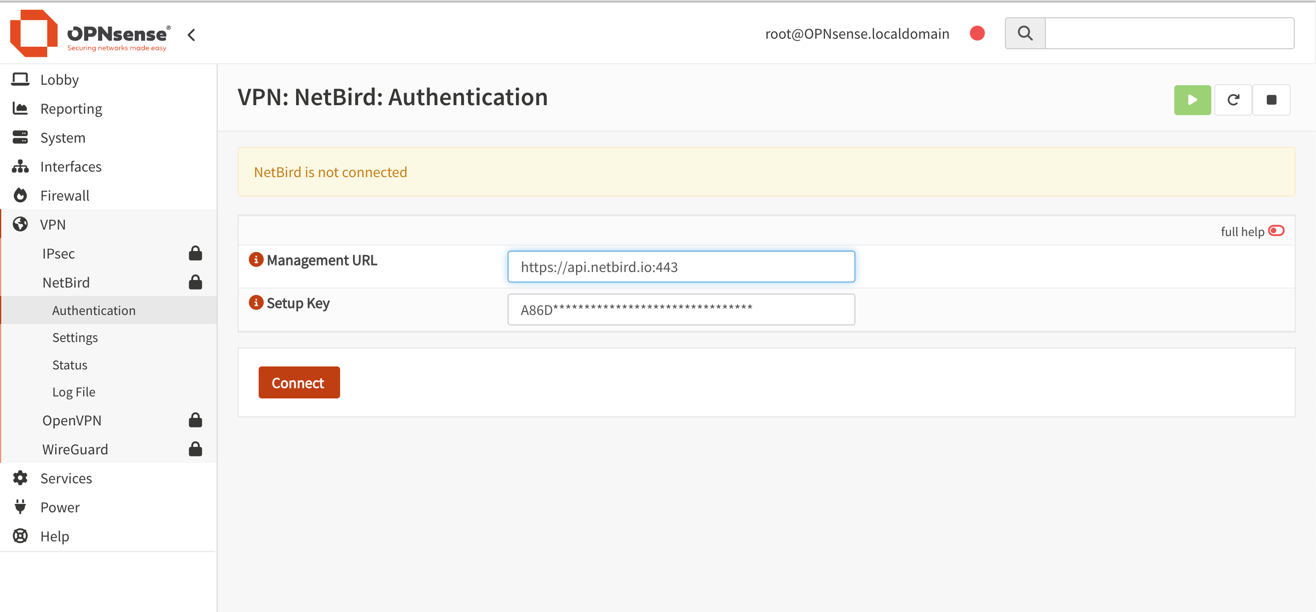
Authenticate the machine
Fill out the authentication form:
- Management URL: enter your openZro management server, e.g.
https://your-management.example.com:443. Do not leave the default — that points at the upstream NetBird managed cloud. - Setup Key: paste a setup key from your openZro dashboard.
Click Save.
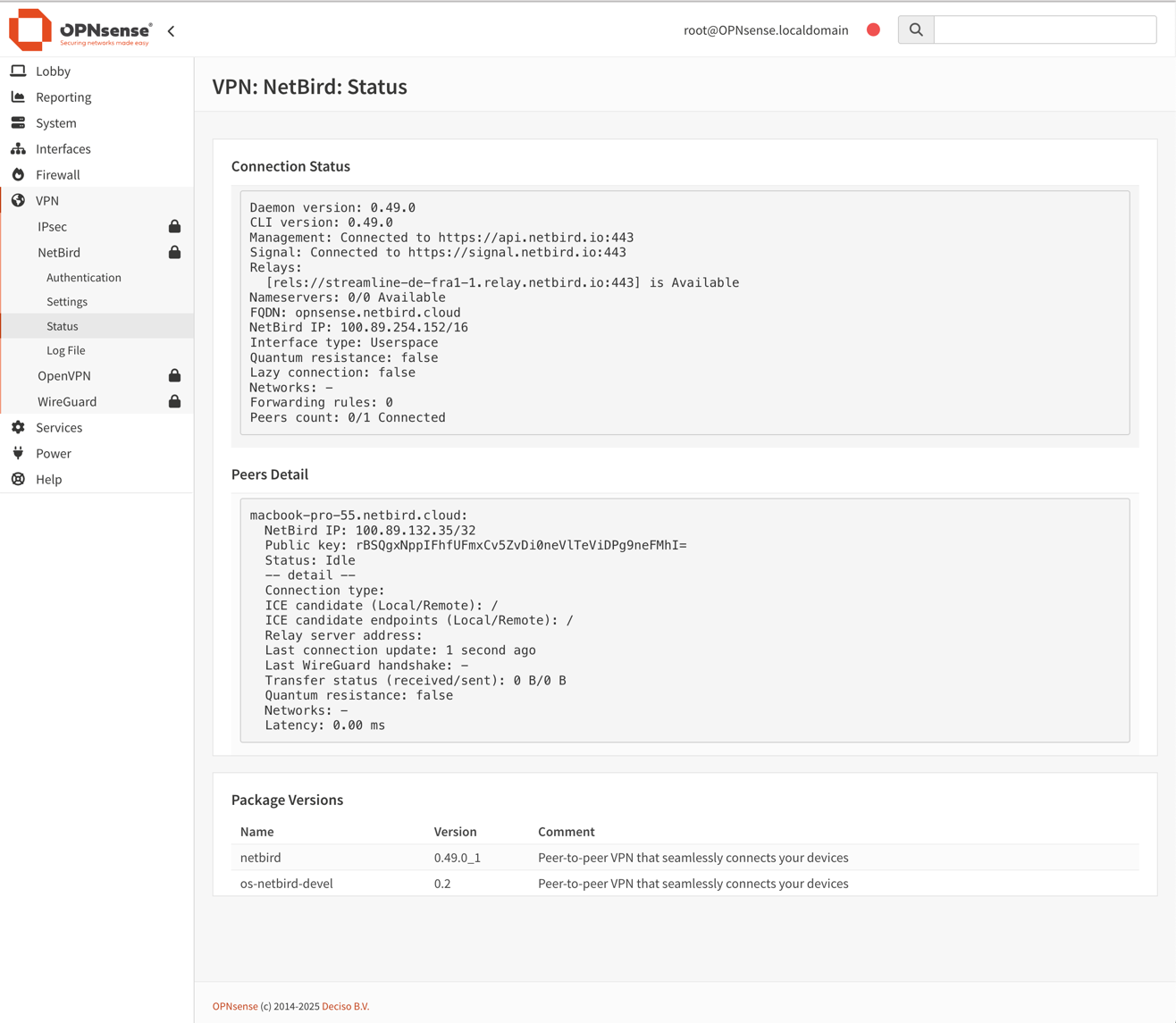
Verify connection status
VPN > NetBird > Status shows connected peers and control-service
health.
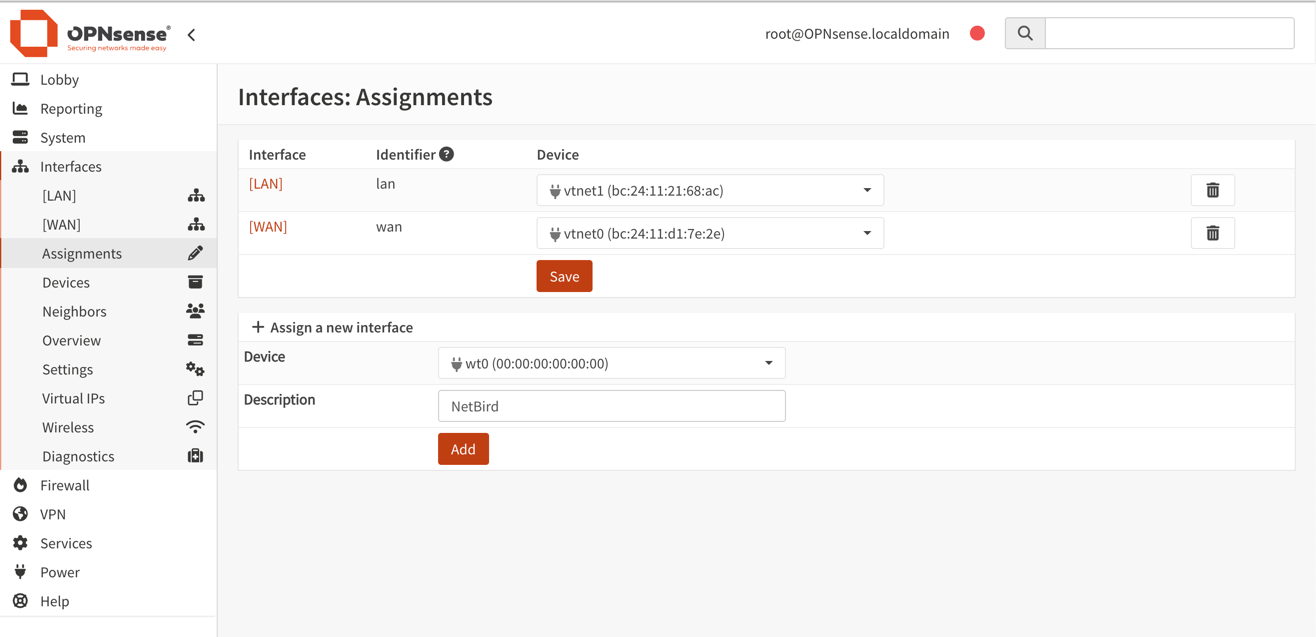
Assign the WireGuard interface
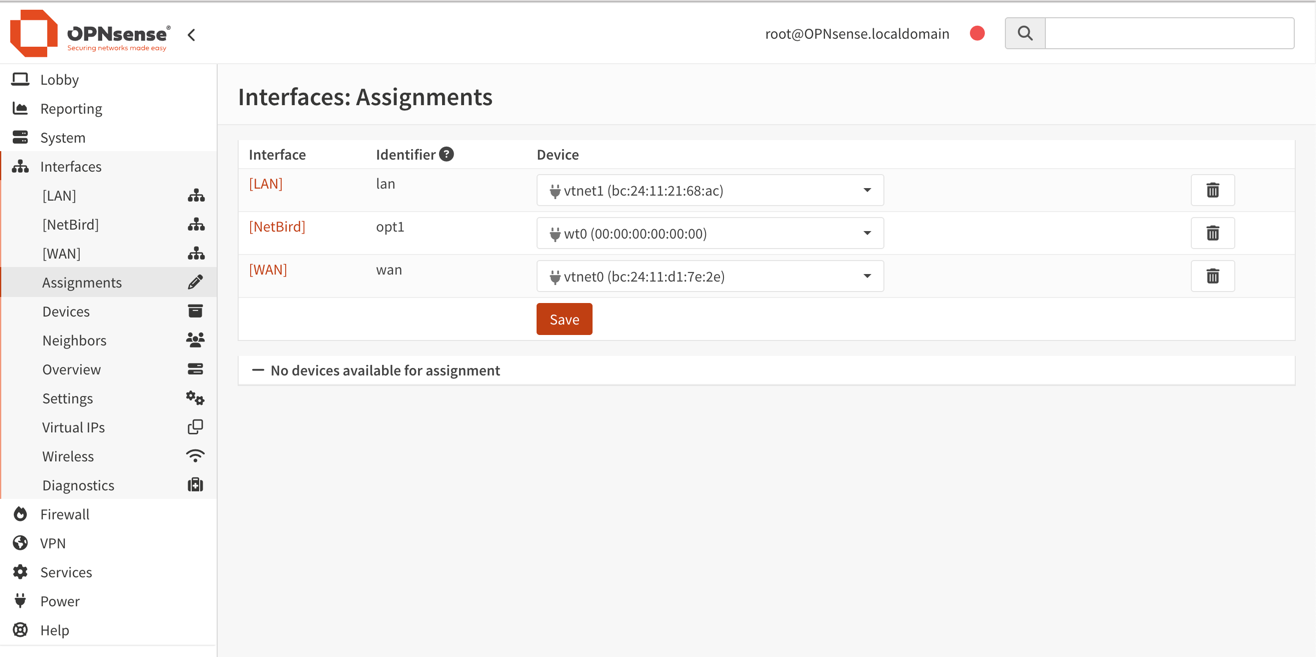
A new interface named wt0 will be available but unassigned. Under
Interfaces > Assignments, in Assign a new interface:
- Device:
wt0 - Description:
openZro
Click Add.
Enable the interface
Interfaces > [openZro], then:
- Enable:
✓ Enable Interface - Lock:
✓ Prevent interface removal
Save, then Apply changes.
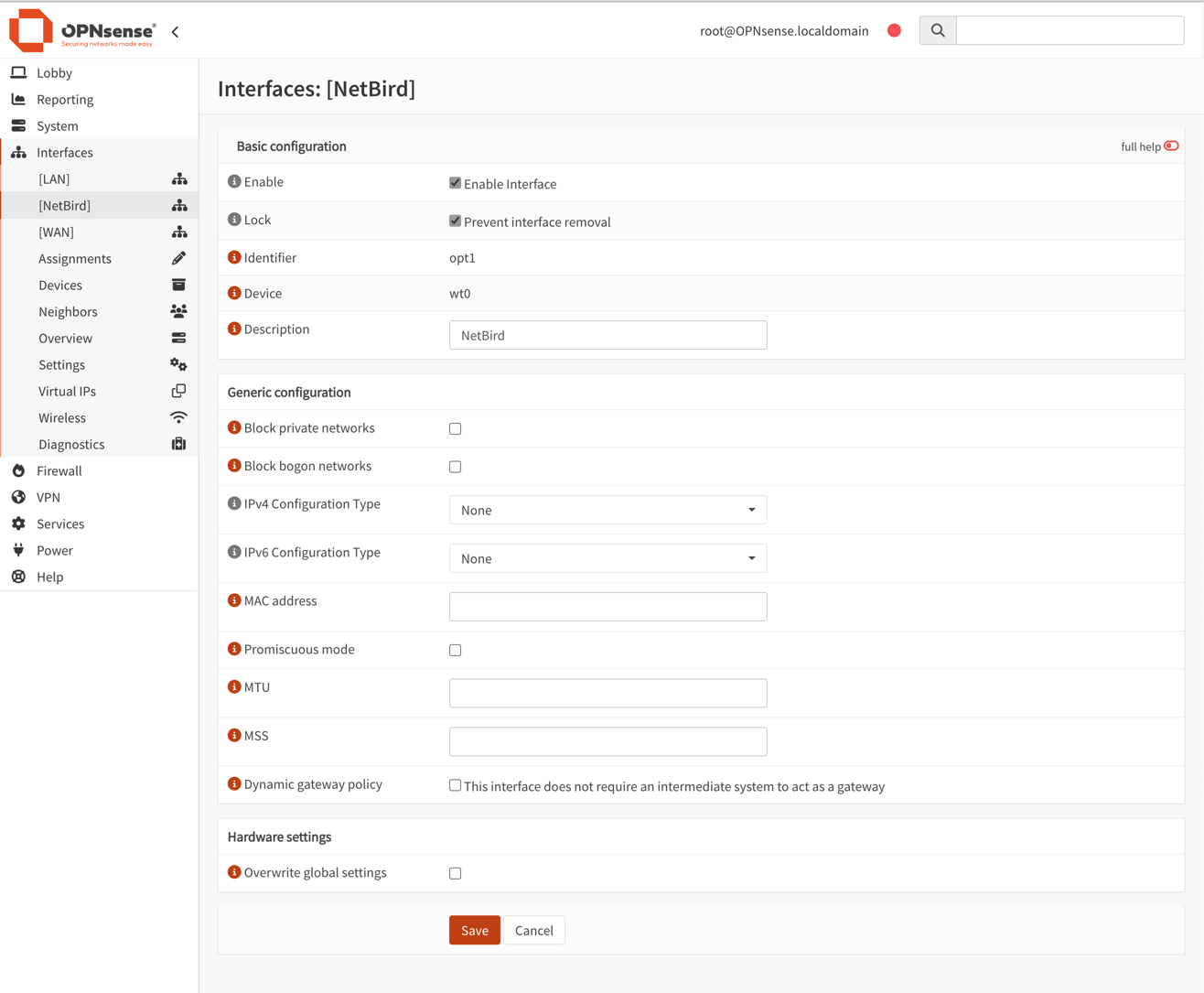
OPNsense has its own WireGuard UI, but do not configure the openZro interface (wt0) through it. openZro manages the WireGuard interface and keys end-to-end.
Configure firewall rules
Permit all traffic on the openZro interface — openZro's own access
policies (ACLs) handle the access control. Under
Firewall > Rules > openZro:
- Click
+ Add - Configure:
- Action:
Pass - Interface:
openZro - Direction:
in - TCP/IP Version:
IPv4 - Protocol:
any - Source:
any - Destination:
any - Description:
Allow all on openZro (managed by openZro ACLs)
- Action:
Save, thenApply changes- Make sure this rule sits at the top of the openZro rules list
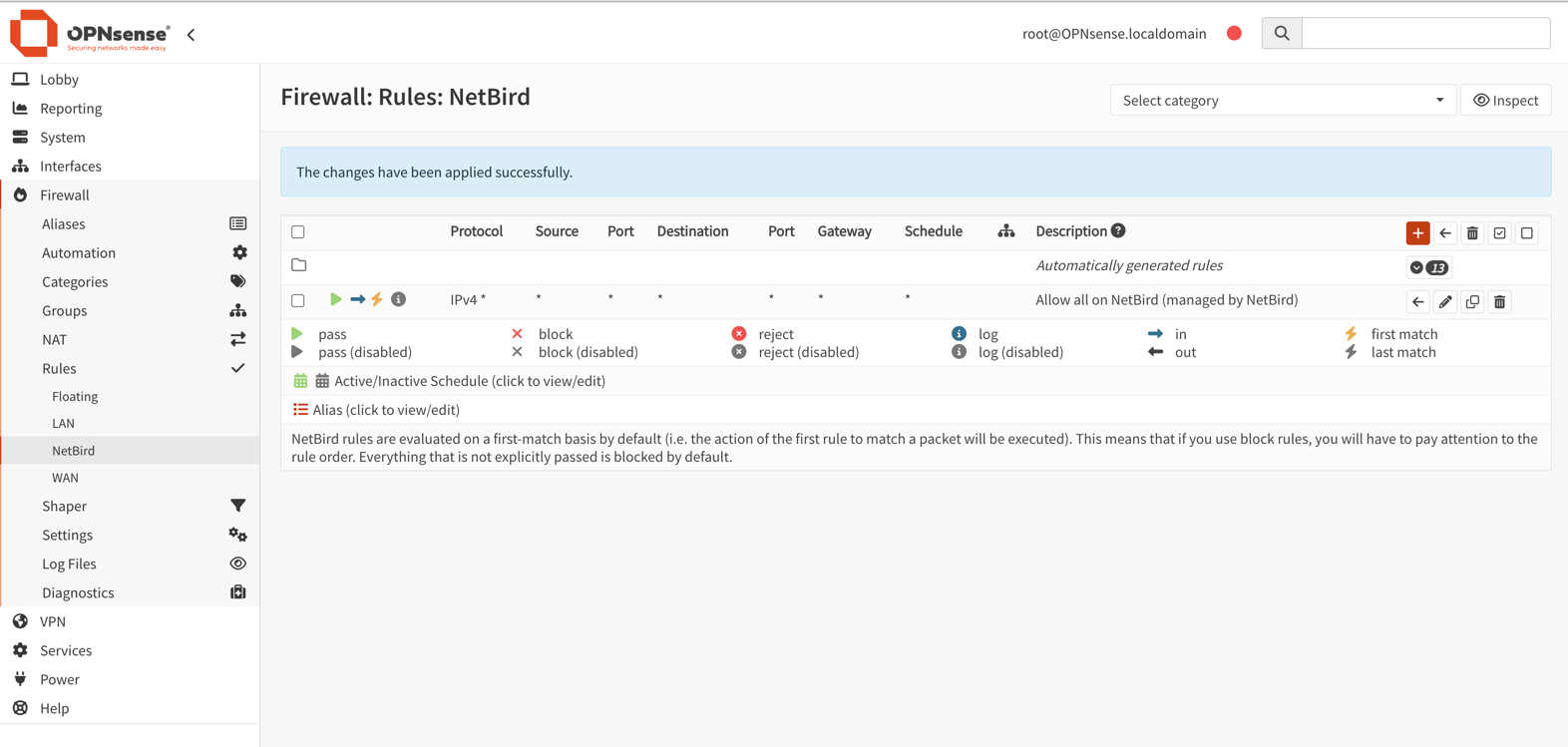
Static port for relayed connections
OPNsense's automatic outbound NAT randomizes source ports, which can break openZro's NAT traversal (hole punching). Add a Static Port mapping for the openZro host:
-
Switch outbound NAT mode:
Firewall>NAT>Outbound- Select
Hybrid outbound NAT rule generation, clickSave
-
Add a static-port rule:
- Click
+to create a new rule - Interface:
WAN - TCP/IP Version:
IPv4 - Protocol:
UDP - Source address:
Single host or Network— IP of the openZro host - Destination address:
any - Translation / Static-port: ✓ check
- Description:
openZro Static Port SaveandApply changes
- Click
-
Reset existing states:
Firewall>Diagnostics>States- Filter by openZro host IP, delete the states
-
Restart the agent:
netbird service restarton the devicenetbird status -dto verify