
pfSense Installation
pfSense ships a NetBird package maintained by Netgate (the pfSense
vendor) that includes both the agent and the firewall UI integration.
openZro is wire-compatible with that client because we forked
NetBird at v0.52.2, the last permissively-licensed release before
the upstream's AGPL relicense — and the agent ↔ management protocol
hasn't broken across versions.
So the workflow is: install the upstream pfSense-pkg-NetBird from
netbirdio/pfsense-netbird,
then point the Management URL field at your openZro management
server. No openZro-specific build needed.
The packages on the upstream release page are signed by Netgate. The agent binary is licensed AGPLv3 (NetBird's current license); the pfSense plugin itself is Apache 2.0. You're an end-user consuming both — neither license affects your use of openZro.
Prerequisites
- Shell/SSH access to pfSense (via Web UI shell or remote SSH)
- A setup key to authenticate and register the pfSense device
- The latest two
.pkgfiles from netbirdio/pfsense-netbird/releases — one for the agent (netbird-<version>-<arch>.pkg) and one for the UI plugin (pfSense-pkg-NetBird-<version>-<arch>.pkg)
Installation
-
SSH into your pfSense system
ssh admin@<pfsense-ip>If remote SSH is enabled, or use the built-in shell via the pfSense Web UI (
Diagnostics>Command Prompt). -
Download the agent
fetch https://github.com/netbirdio/pfsense-netbird/releases/latest/download/netbird-<version>-<arch>.pkgReplace
<version>and<arch>with the values from the latest release. Most pfSense installations arex86_64; appliances on ARM useaarch64. -
Download the pfSense plugin
fetch https://github.com/netbirdio/pfsense-netbird/releases/latest/download/pfSense-pkg-NetBird-<version>-<arch>.pkg -
Install both packages
pkg add -f netbird-<version>-<arch>.pkg pkg add -f pfSense-pkg-NetBird-<version>-<arch>.pkg -
Verify the installation
The NetBird configuration UI should now appear under
VPN>NetBirdin the pfSense menu. The label says NetBird because that's the upstream package name — point it at openZro in the next step.
Configuration
Authenticate the machine
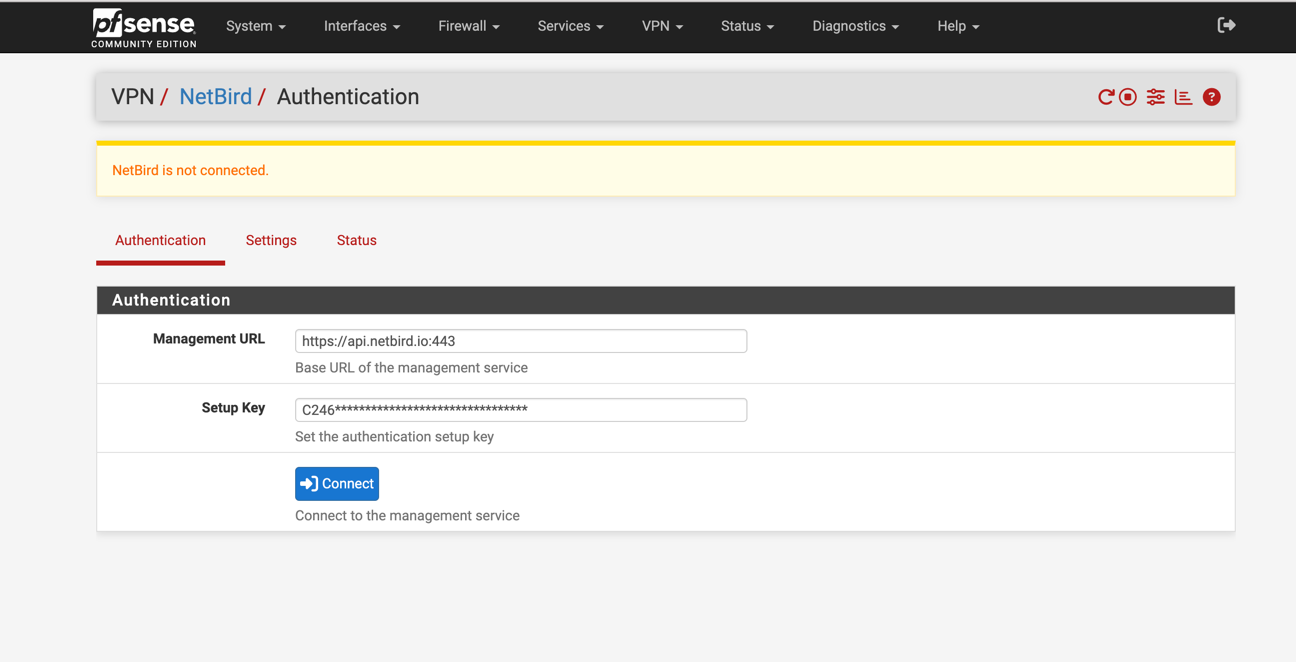
In VPN > NetBird, fill out the authentication form:
- Management URL: enter your openZro management server, e.g.
https://your-management.example.com:443. Do not leave the default — that points at the upstream NetBird managed cloud. - Setup Key: paste a setup key issued from your openZro dashboard.
Click Save.
Verify connection status
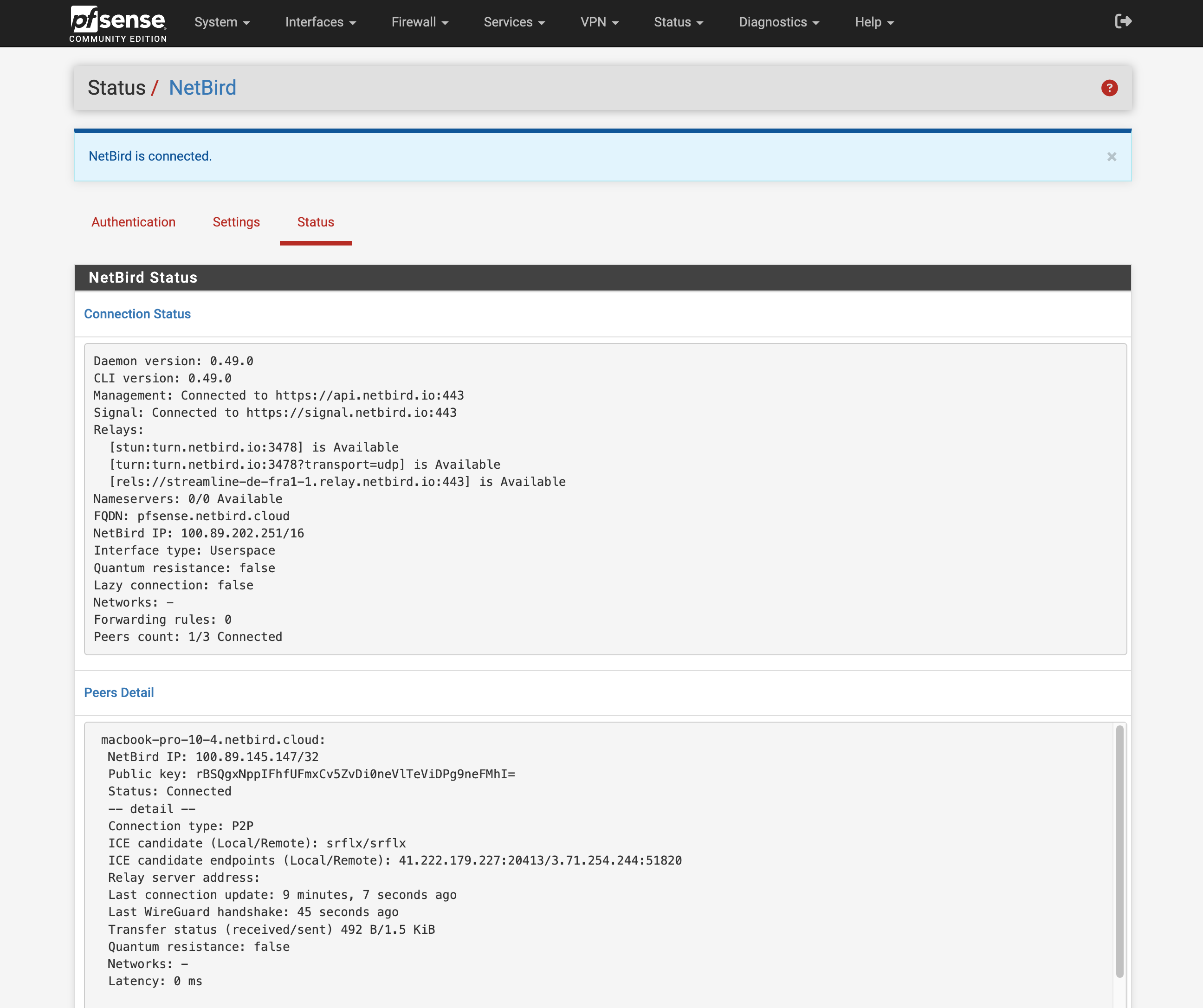
The Status page shows connected peers and control-service health.
Open it via Status > NetBird in the pfSense menu.
Assign the WireGuard interface
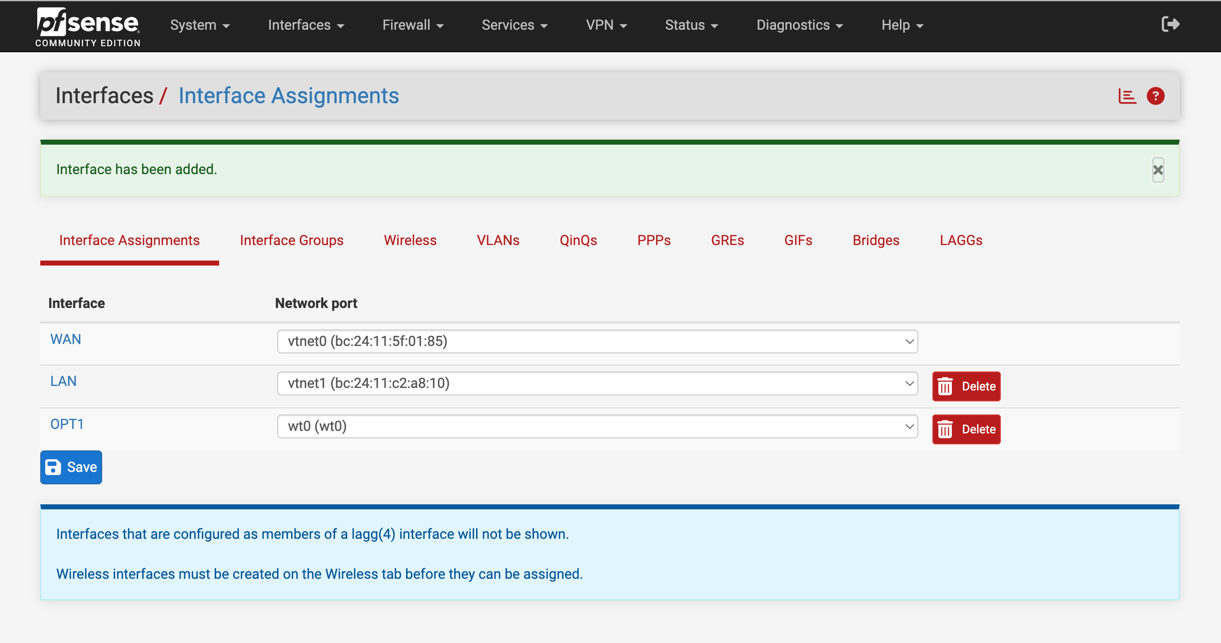
After authentication, a new interface named wt0 will be available
but unassigned. Assign it via Interfaces > Assignments. Under
Available network ports, select wt0(wt0) and click Add.
Enable the interface
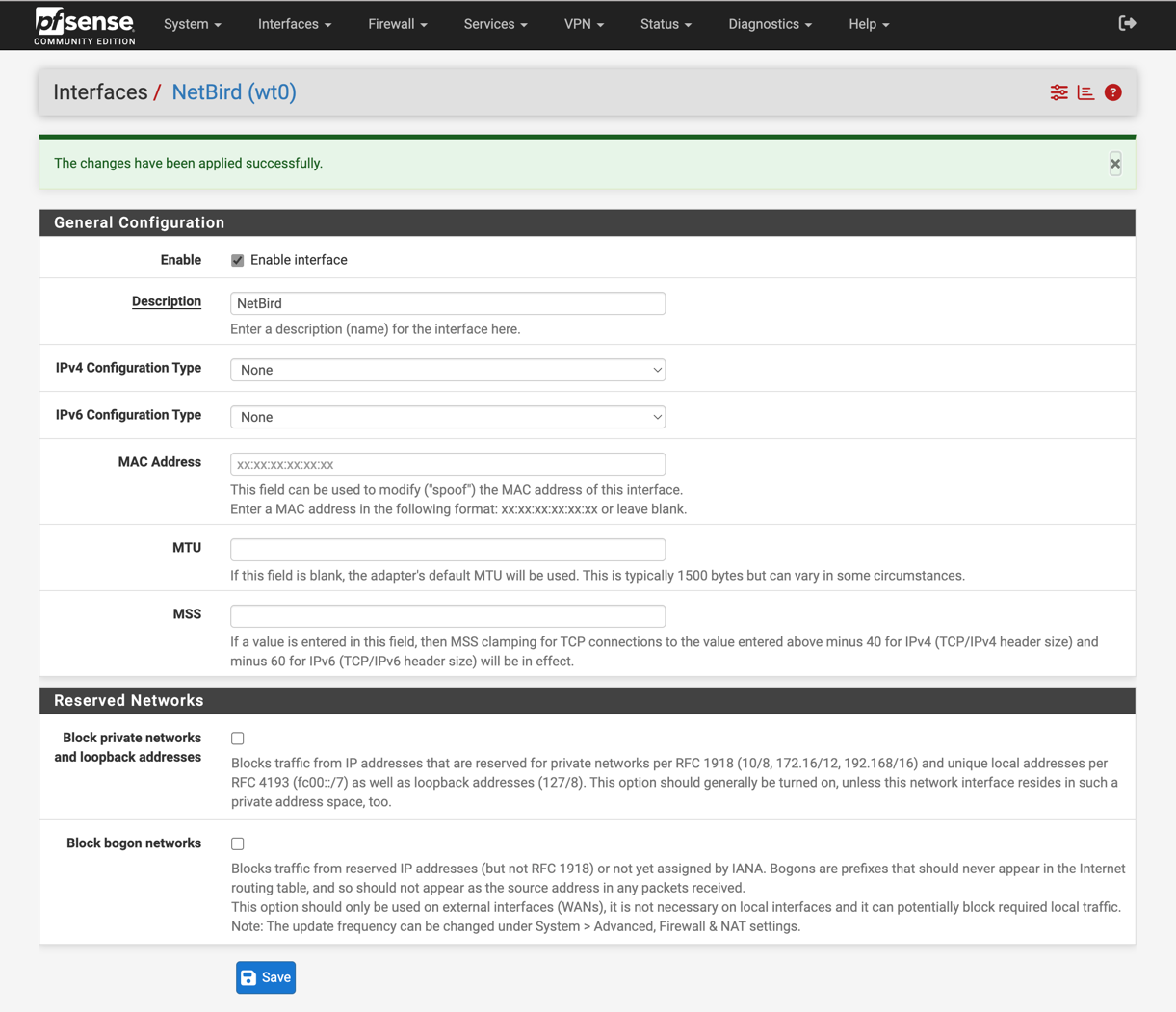
Go to Interfaces > OPT1 (or whatever name pfSense gave the new
assignment), then:
- Enable:
✓ Enable Interface - Description:
openZro
Click Save, then Apply changes.
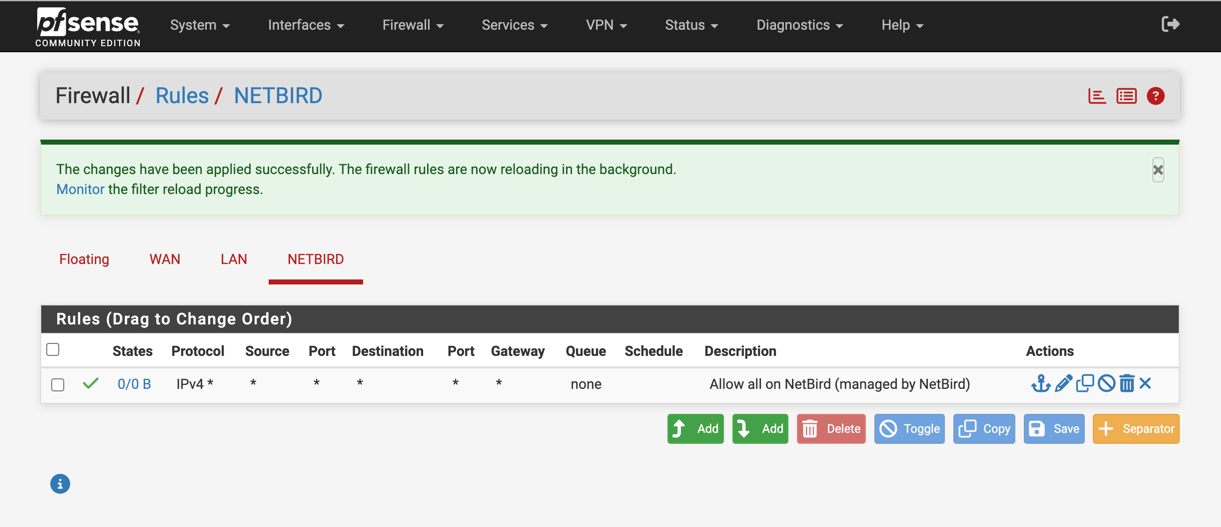
Configure firewall rules
Permit all traffic on the openZro interface in pfSense — openZro's
own access policies (ACLs) handle the access control. Create rules
under Firewall > Rules on the new interface tab:
- Click
Addto create the rule - Configure:
- Action:
Pass - Interface:
OPENZRO(the description you set above, in caps) - Address Family:
IPv4 - Protocol:
Any - Source:
Any - Destination:
Any - Description:
Allow all on openZro (managed by openZro ACLs)
- Action:
- Click
Save, thenApply Changes
Static port for relayed connections
By default, pfSense's automatic outbound NAT randomizes source ports, which can break openZro's NAT traversal (hole punching). Add a Static Port mapping for the openZro host so direct connections work reliably:
-
Switch outbound NAT mode:
Firewall>NAT>Outbound- Select
Hybrid Outbound NAT rule generation, clickSave
-
Add a static-port rule:
- Click
Add(Up arrow) to create a new rule at the top - Interface:
WAN - Address Family:
IPv4 - Protocol:
UDP - Source:
Network— IP of the openZro host - Destination:
Any - Translation / Static Port: ✓ check
- Description:
openZro Static Port - Click
SaveandApply Changes
- Click
-
Reset existing states so the new rule takes effect for in-flight connections:
Diagnostics>States- Filter by the openZro host IP, click
Kill
-
Restart the agent:
netbird service restarton the devicenetbird status -dto verify
Uninstallation
pkg delete netbird pfSense-pkg-NetBird